![City Hive Logo-2.png]](https://support.cityhive.net/hs-fs/hubfs/City%20Hive%20Logo-2.png?width=62&height=60&name=City%20Hive%20Logo-2.png)
Activate Add-On
- Begin on your Add-Ons & Plugins section

- Select Walmart LocalFinds Feed & Order Integration
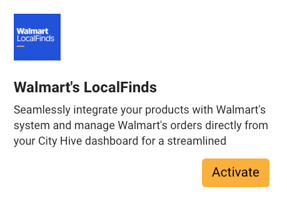
- Review the summary then click Activate
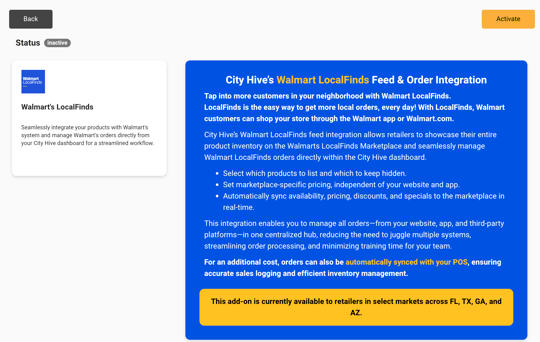
If you have multiple locations, please make sure to activate the add-on at each individual location.
Create Feed
- Scroll up to the top of the Add-Ons & Plugins section and click on Data Feeds
- Click (+) in the top right corner to create the feed. In the dropdown click on Walmart, select "Mark as Enabled" then click "Create"
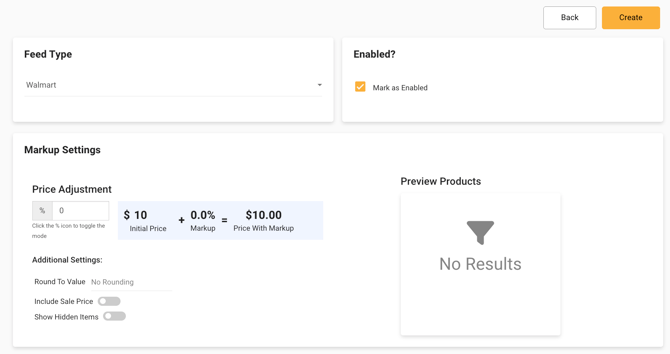
You can also add any general price markups in the Price Adjustment field of the General Feed Filter, and markups for specific products or categories can be added by clicking  and entering the applicable parameters.
If you want to make changes to your feed in the future, please check out this article: Data Feed Management
Managing Walmart Orders
- Begin on the Orders section of your dashboard
-
If an order is placed through Walmart, the logo will appear next to it

-
 status will always appear on the order, as we do not handle payment processing on our end. Payments for any orders are settled directly through Walmart
Regarding editing an order — the customer’s phone number is listed under the Recipient Details. If an item is out of stock, you can give them a call and then update the order directly from the City Hive dashboard.
Approve or Decline
Store Hours
We send the store’s business hours (not delivery hours) in cases where Walmart’s courier fleet is handling the delivery. Feel free to check out our article here for more details on how this is managed. Store Hours
For any additional questions or concerns regarding these specific orders, please contact your representative at Walmart or reach out to support@cityhive.net for further assistance.