![City Hive Logo-2.png]](https://support.cityhive.net/hs-fs/hubfs/City%20Hive%20Logo-2.png?width=62&height=60&name=City%20Hive%20Logo-2.png)
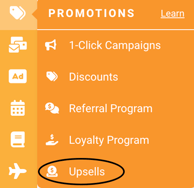
- Begin on your Promotions section on your dashboard, select Upsells
- Click (+) to create an upsell
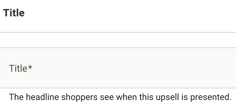
- Add a title
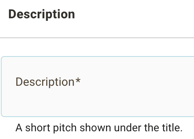
- Add a description
- Add a disclaimer
- Upload an image

- Select an action type by viewing the options in the dropdown

- No Action – No follow-up action is triggered
- Use Coupon – Automatically apply a specified coupon code
- Show Message – Display a Success, Warning, or Error message, with your own custom text
- Open URL – Redirect customers to a specified URL, with a custom link name
- Add to Cart – Automatically add a chosen item and quantity to the customer's cart
- Select a place you would like the upsell to appear
- Add to Cart – Shows when an item is added to the cart
- Checkout Begin – Shows when checkout starts
- Cart View – Shows when the cart is viewed
- Order Placed – Shows after an order is placed
- Apply this to specific types: Pickup, Delivery, Shipping, Scheduled Delivery, or Purchase Order
- Once done, select "Create" at the top of the page to save your changes
