![City Hive Logo-2.png]](https://support.cityhive.net/hs-fs/hubfs/City%20Hive%20Logo-2.png?width=62&height=60&name=City%20Hive%20Logo-2.png)
- Use the search bar at the top right to find the product you want to update

- Click on the arrow to view the full product page

For quick edits, hover over the product's image, name, view, or category. A pencil icon or dropdown will appear so you can update it right there, with no need to open the full page.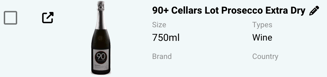
Product Name
-
After opening the page, click the pencil icon next to the product name and enter a clear, accurate name so customers can easily identify it

-
Eliminate any additional abbreviations, sizes, etc. that is not the exact name of the product

-
Select the checkmark to save

What to avoid including in a product name:
- Beer/Soda: should NOT include pack size ( i.e. 4 pack, 6 pack, single) but can include container size and type (i.e. 12oz can)
- Wine: Names for wine can NOT include container size and type
- Liquor: Names for liquor can NOT include bottle sizes (i.e. 750 ml)
- Other/Accessories: Names in general can NOT include any pricing or availability info
Product Image
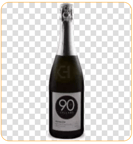
To ensure high-quality images for your app or website, the entire bottle should be shown on a white or transparent background, with at least one side measuring 450 pixels or more. Images containing trademarks will not be approved.
- Hover over the current photo, then click on it
-
Click the image to open the Media section, then select Primary Image to replace it or upload a new photo
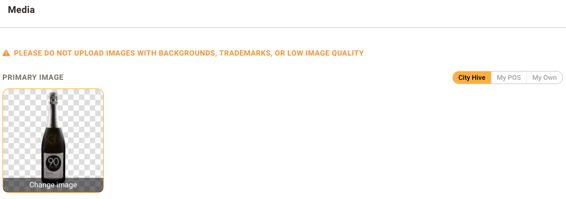
From File: Upload a saved image from your computer by dragging and dropping it, selecting it from your files, choosing from the Media Gallery, or using a URL.
Media Gallery: Pick an image that has already been uploaded to your gallery through the Studio section of the dashboard.
From URL: To use an image from the internet, click Search For Product to open Google Image Search. Find an image that meets the requirements, right-click it, and select Copy image address. Then paste the URL into the provided field and click Submit.
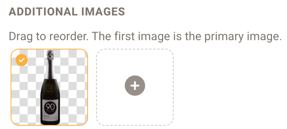
Below that, you can add more images and drag them to change the order they appear on the site.
Product Description
Use this section to edit any product details. To add information your customers should know, click the pencil icon to make your changes, then select the checkmark to save them.

Product Categories
Place the product in the appropriate section of your mobile app or website. The type defines the main category the product belongs to, while the subtype provides a more specific category within that type. To make updates, click the pencil icon beside each section.

General Keywords
If a product can be described as organic, fruity, or dry, you can include that information in this section. You can add keywords to help customers easily find the product when searching. Click the pencil icon to start adding your keywords, press Enter after each tag, then click the checkmark to save your changes.

Product Size
- Click Edit Size, located just below the additional images

- Enter the product size as you'd like it to appear
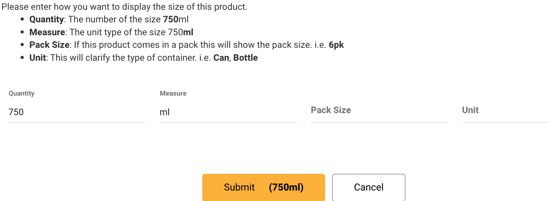
- Click Submit to save your changes
Product Properties
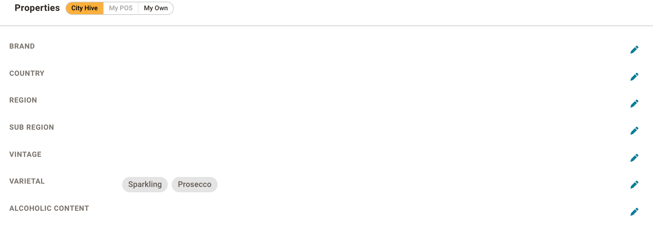
In this section, you can update additional details about the product. These fields can be updated by clicking the pencil icon next to each section and then selecting the checkmark to save your changes.
-
Enter the brand of the product
-
Select the country using the drop-down menu
-
Specify the region or sub region the product comes from
- Enter the vintage year of the item
-
If the item is a wine, enter the varietal(s)
-
Add the alcohol content (%)
Custom Categories
These are specific to your store and help you organize products within your app or website. Use them to group similar items for navigation, filtering, or promotions. For example, you might create a tag like "Summer Favorites" or "Holiday Specials" to highlight certain products.

To add tags, click the pencil icon and type your keywords, pressing Enter after each one. Then click the checkmark to save your changes. 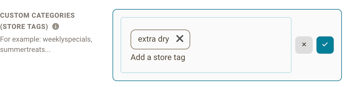
Orange tags can be edited directly in the dashboard. Grey tags are pulled from your POS and synced through your integration, so they can only be viewed here and must be managed directly in your POS. 
Offer Type Restrictions
Order type restrictions let you choose how specific items can be purchased. To set one, use the selection menu on the product and pick an order type. A custom tag is then added to the item automatically.
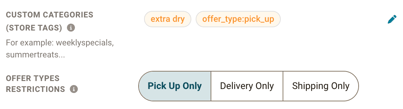
You can apply more than one order type to a product. For example, if you choose both Pickup and Delivery, the item will only be available for those two options.
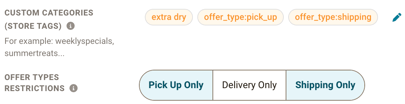
If a customer selects an unavailable order type at checkout, they'll see a message explaining the item's availability. You can turn a restriction on or off anytime from the product's selection menu.
Price and Quantity
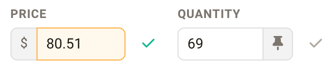
Our inventory syncs with your POS system every hour and will override the price and quantity listed in your City Hive dashboard if they are different after each sync. Because of this, any permanent price changes should be made in your POS. If needed, you can temporarily update the product’s price and quantity in the dashboard by following the steps below.
-
Click the price box to update the item's price, then click the checkmark to save your changes.
-
To update the quantity, enter the new amount. If you want to keep the quantity static, click the pin icon next to the box before clicking the checkmark to save.