![City Hive Logo-2.png]](https://support.cityhive.net/hs-fs/hubfs/City%20Hive%20Logo-2.png?width=62&height=60&name=City%20Hive%20Logo-2.png)
- Begin on the Users section under Settings
- To add a new user, click (+) the at the top right of the page


-
If you wish to create the user only providing the team member's email, you can choose to register with "Email Only" and assign them a role. If you would like to provide all of the team member's information, you can select "All User Info" and proceed to provide your employee's name, assign them a role, enter their email and phone number, and create a password which they can use to login

-
Click Submit to send your team member an email with an invitation to the platform
Please Note: The user will need to click the Verify Email button in their email to receive access to their account
Employee Order Notifications
- Begin on your Users section, Which can be found on the top menu bar within the settings page

- Select the user you would like to enable notifications for

- Click Edit at the top right

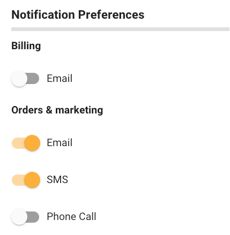
- Toggle notifications on to enable them for the user, or turn them off to pause notifications
- Click Save once done
Dashboard Preferences
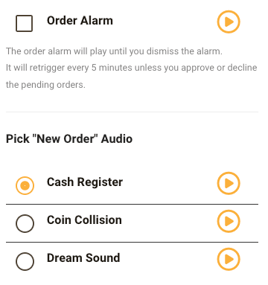
This is where you can set your alarm notification for incoming orders. You can tap the play button to preview each sound before selecting one, then click Save at the top to apply your changes.