Skip to content
  • There are no suggestions because the search field is empty.

Transaction Reports & Bank Reconciliation

This article summarizes the order approval through bank deposit flow and how you can use the transaction report within your dashboard to reconcile bank disbursements.


When an order is approved, we immediately send it for settlement to Adyen. Transactions are submitted for settlement each day and disburses around 11:30pm ET. Deposits are typically two business days after a transaction settles.

In summary, you can expect to see funds deposited to your bank about two business days after an order is approved.

Transaction Reports

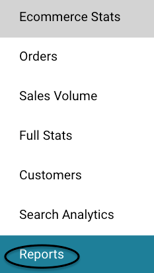
Utilize transaction reports to reconcile your bank disbursements to your orders. This is found in the Overview Section of your dashboard, by selecting Reports.

Screenshot 2024-09-30 at 13.29.24

You have the ability to download reports from the All Reports section as it will showcase all report activities. If you prefer to use what you have used in the past, you can go to Legacy Reports to proceed! 

City Hive transaction fees, credit card fees, and insurance fees (if applicable) are deducted prior to disbursement for each transaction (i.e., for each order). These details can be reviewed in your report. 

Follow the steps below to download the transaction report. This will go over how to download from the All Reports section. 

1. Begin on Overview > Reports and go to All Reports or Legacy Reports at the top depending on how you prefer to search
2. Go to Transaction Report in the middle of the page and click "Get Report"
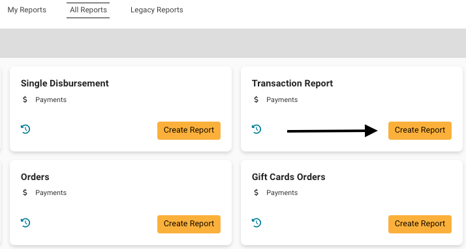

Screenshot 2024-09-16 at 6.09.50 PM

3. Choose how you would like to filter the date range. For example, if you select, Get Range By "Disbursement Date," this means that only orders  disbursed within the date range that you select will be included

4. Choose the date range that you would like to review. You can also scroll down to the bottom and choose "Custom" if you would like to select your own date range Screenshot 2024-09-16 at 6.12.37 PM
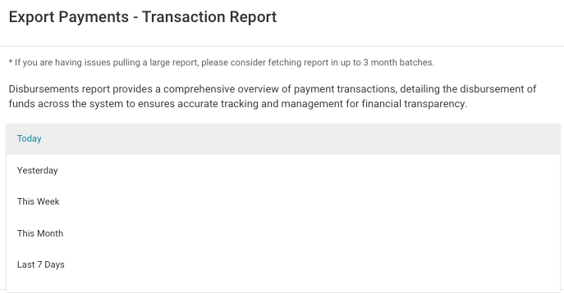
We recommend waiting at least three business days after an order is accepted to review your bank deposits against the Transaction Report.

E.g., You can run this report by disbursement date on Wednesday to account for the orders between Sunday and Saturday of the prior week. This allows Friday night and Saturday’s transactions to have been disbursed on Monday and deposited to your bank by Tuesday. 

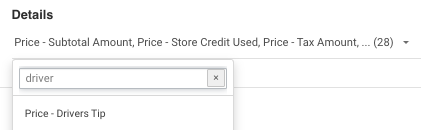
5. Go to Details and click the small down arrow to add or remove details from your report. For example: You would like to see what the driver's were tipped for orders. You can add that detail and driver name to the report. See more information below in the Transaction Report Details section
Screenshot 2024-09-16 at 6.14.43 PM

6. Select "Get Report" once you have everything you want for the report

7. Select "Download" to get the report

If you would like to review a report for a different date range, please make sure to refresh the page prior to selecting the new date range.

Reconciling Bank Disbursements

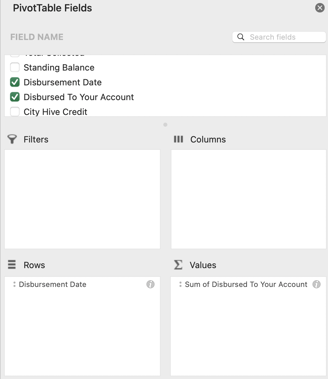
We recommend opening the CSV file using Excel or Google Sheets. To review your transactions against your bank disbursements, create a pivot table following the steps below:

1. Select all of the data in the spreadsheet (Ctrl+A)

2. Select Insert > Pivot Table > OK

3. Set up the pivot table to include the  Disbursement Date as a Row and the  Sum of Disbursed to Your Account as a Value, as shown below

4. Reconcile the disbursement amounts to the deposits in your bank account.  As a reminder, deposits typically occur one business day after disbursement


 Transaction Report Details 

You can add or remove columns in the transaction report by clicking the down arrow under the details section. Then you can select which Customer, Price, Product, or Order Information details you would like to include in the report.

The table below provides an overview of the columns that can be included in the transaction report:

Column

Definition

Time

Local time the order was placed

Order ID

City Hive ID for the order

Transaction ID

ID provided by our Processor (Braintree), one order can have multiple Transaction IDs (e.g., if processing refunds)

Merchant Name

Name of the merchant that processed the order

For chains, this specifies the location that processed the order

Merchant ID

ID of merchant who processed the order

Confirmed At

Local time the order was approved

(Note: This action submits the order for settlement)

[Subtotal, Discount, Delivery Fee, Shipping Fee, Tax, Tip, Total] Price When Confirmed

This is a snapshot of the prices at time of confirmation

Sub-Total Amount

Sub-total amount of the order

[First Time, City Hive, Other] Coupon

Coupon amount if a coupon of specific type was applied

Referral Discount

Discount amount from a referral code

Split Coupon City Hive

City Hive’s portion of the split coupon

Split Coupon You

The merchant's portion of the split coupon

Coupon Name

Name of coupon

Underlying Discount Rule

These are automatic discounts of the store. This shows the price of any auto discounts that were applied

Underlying Discount Name

Name of automatic discount

Manual Discount

Price of discount that is applied through the Universal Dashboad

Discounted Subtotal

Subtotal amount less any applied discount

Store Credit Used

Amount of store credit applied to this order

Tax Amount

Amount of taxes

Tip Amount

Amount of tip

Delivery Fee

Amount of delivery fee

Shipping Fee

Amount of shipping fee

Drivers Tip

Amount applied to driver

Delivery Driver

Name of delivery driver

Delivery Service Fee

Fee from the delivery service used

Delivery Service Name

Name of delivery service used

City Hive Fee

Amount of City Hive fee for the order

Credit Card Fee

Amount of Credit Card Fee for the order

Fraud Insurance

Amount of Insurance Fee for the order

Total Amount

Total amount charge to the customer

Total Collected

Total amount to be disbursed to merchant (this amount will populate prior to disbursement, whereas "Disbursed to Your Account" will only populate after disbursement occurs)

Standing Balance

Total amount without City Hive Credit

Disbursement Date

Date the transaction was disbursed

Disbursed to your account

Final amount that was disbursed to the merchant's bank account 

City Hive Credit

Amount of city hive credit applied to the order

Disbursement Plus City Hive Credit 

Disbursement amount plus the credit earned from city hive discount credit

Number of Products

Number of products in the order

Product Barcodes

List of barcodes on this order

Product Names

List of names of products on this order

Original Product Quantity

Number of products before order edit

Original Product Subtotal

Sub-total of order before edit

Current Product Quantity

Number of products after edits

Current Product Subtotal

Sub-total of order after edit

Order Status

State the order is in (Confirmed/Declined/Refunded)

Order Type

What type of order (Shipping/Delivery/Pick Up)

Order Options

List of order options applied to this order

Customer Address

Address of customer

Customer Address District

County of customer’s address

Customer Phone Number

Phone number of customer

Customer Email

Email of customer

Customer Name

Name of customer

Tracking Number

Tracking number of shipping order

Weight x Size

Dimensions and weight of package