![City Hive Logo-2.png]](https://support.cityhive.net/hs-fs/hubfs/City%20Hive%20Logo-2.png?width=62&height=60&name=City%20Hive%20Logo-2.png)
Add a New Menu Option
- Begin on your Top Menu section under Studio
-
Click (+) to add your new option to the main category. The options shown here represent your main categories

- Rename the option by changing it from "New item” to your preferred name
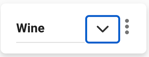
- Select the dropdown beside the main category to create a department
- Enter the title and subtitle for your department

- Click (+) below the option to add sub-departments. To add a new department, click (+) on the right side
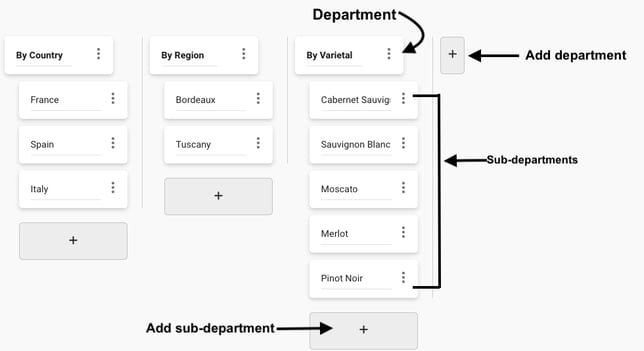
Please note: the item under the category is a department which is not clickable.
Add a value
-
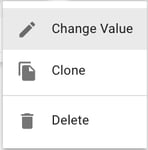
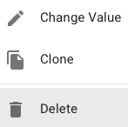
Click the three dots to the right of the menu name then select Change Value to add the end ofURL of where you'd like the menu item to lead to
-
Insert the end of the URL (everything after “.com”) into the value
(e.g., /shop/category=kegs)New URLs can be created using:-
Product Groups: custom product collections
-
Pages/Blogs: Campaign landing pages, service-focused or educational content
- Click here for other popular examples with default links
-
-
Press Save at the top right

Other popular examples of default page links:
- Shop
/shop - Blog
/blog - Store info:
/info - Events
/events - E-Gift Cards
/buy-gift-cards - Referral Program
/share - Subscription Clubs
/wine-clubs - Current Specials (Promo Banners Sliders & On Sale Products)
/current-specials - Deals Page:
/pages/deals - Drink Calculator:
/drink-calculator - Cart
/cart - Profile
/profile - Order History
/order-history - Notifications:
/notifications - Store Locator (for Multi-Locations sites)
/store-locator - Product Request Page:
/pages/product-request - Recipes:
/recipes
Remove a Menu Option
1. Click on the three dots next to the menu option
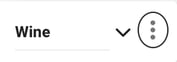
2. Select Delete
3. Press Save at the top right 
Rename a Menu Option
1. Double click on the current menu name
2. Replace the name with what you would like the menu option to be called
3. Press Save at the top right