![City Hive Logo-2.png]](https://support.cityhive.net/hs-fs/hubfs/City%20Hive%20Logo-2.png?width=62&height=60&name=City%20Hive%20Logo-2.png)
-
Begin on the Orders section of your dashboard
-
Click (+) at the top right next to the search bar

-
Select the first option to create a new order

-
Type the customer's name to search and select them. If the customer has a phone number and payment method on file, these will auto-populate
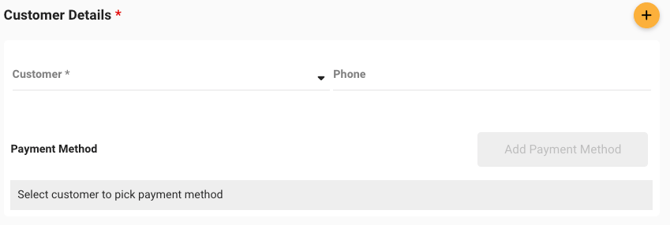 To add a new customer, select
  and manually enter their details
 -
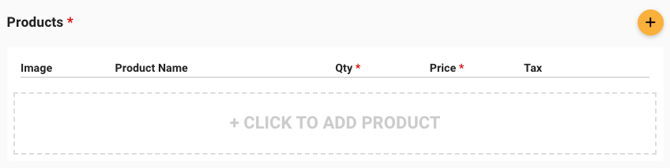
Add and select the desired products
-
Choose a fulfillment method

-
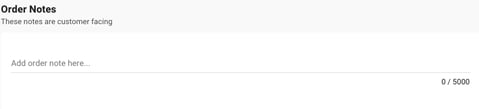
Any notes you'd like the customer to see can be added to the order here
-
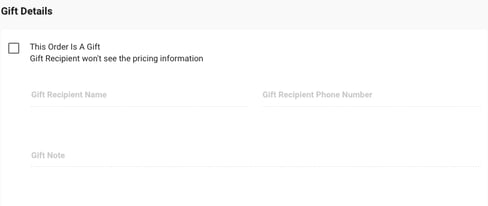
For gift orders, select the gift option and fill in the recipient's information on the customer's behalf
-
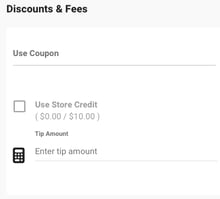
Add any coupon codes, store credit, or tip amount as needed
- Select Create to finalize and create the order

- Approve the order to finalize payment and notify the customer that the order is ready for pickup or out for delivery/shipping