![City Hive Logo-2.png]](https://support.cityhive.net/hs-fs/hubfs/City%20Hive%20Logo-2.png?width=62&height=60&name=City%20Hive%20Logo-2.png)
- Begin on the Settings section of your dashboard
- You will automatically be defaulted to the Business Settings section
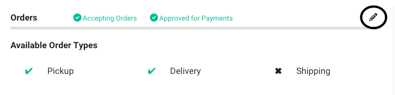
- In the Orders section under Available Order Types , click the pencil on the right hand side to edit
Pause Pickup Orders
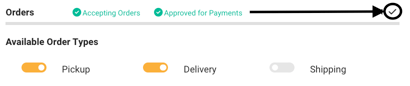
- To pause Pickup orders, toggle off Pickup and select the check mark to save changes
Pause Delivery Orders
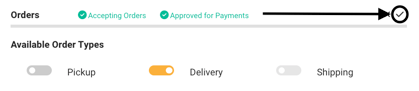
- To pause Delivery orders, select the custom pause time
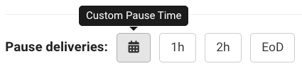
You also have the option to pause orders for 1hr, 2hrs, or until the end of the day - Pick a date and time to pause till then select the day and time shown on the button to confirm
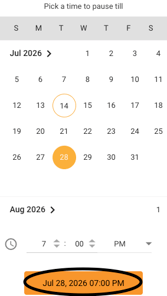
- You'll see a pop up to confirm once more to pause orders, select to pause
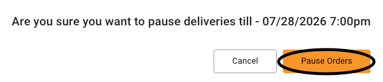
- If you are ready to unpause orders before the date and time selected, click on

Another alternative is to set up Special hours, feel free to refer to our article here for more information
Pause Shipping Orders
- To pause shipping orders, toggle off Shipping and select the check mark to save your changes