![City Hive Logo-2.png]](https://support.cityhive.net/hs-fs/hubfs/City%20Hive%20Logo-2.png?width=62&height=60&name=City%20Hive%20Logo-2.png)
Inventory Movements
How to track every change to your stock, understanding what moved, when, why, and who was responsible.
1. Inventory Movements
Welcome to the CityHive Knowledge Base guide on Inventory Movements. This session will show you how to track every change to your stock, understanding what moved, when, why, and who was responsible.
2. Inventory Movements Overview
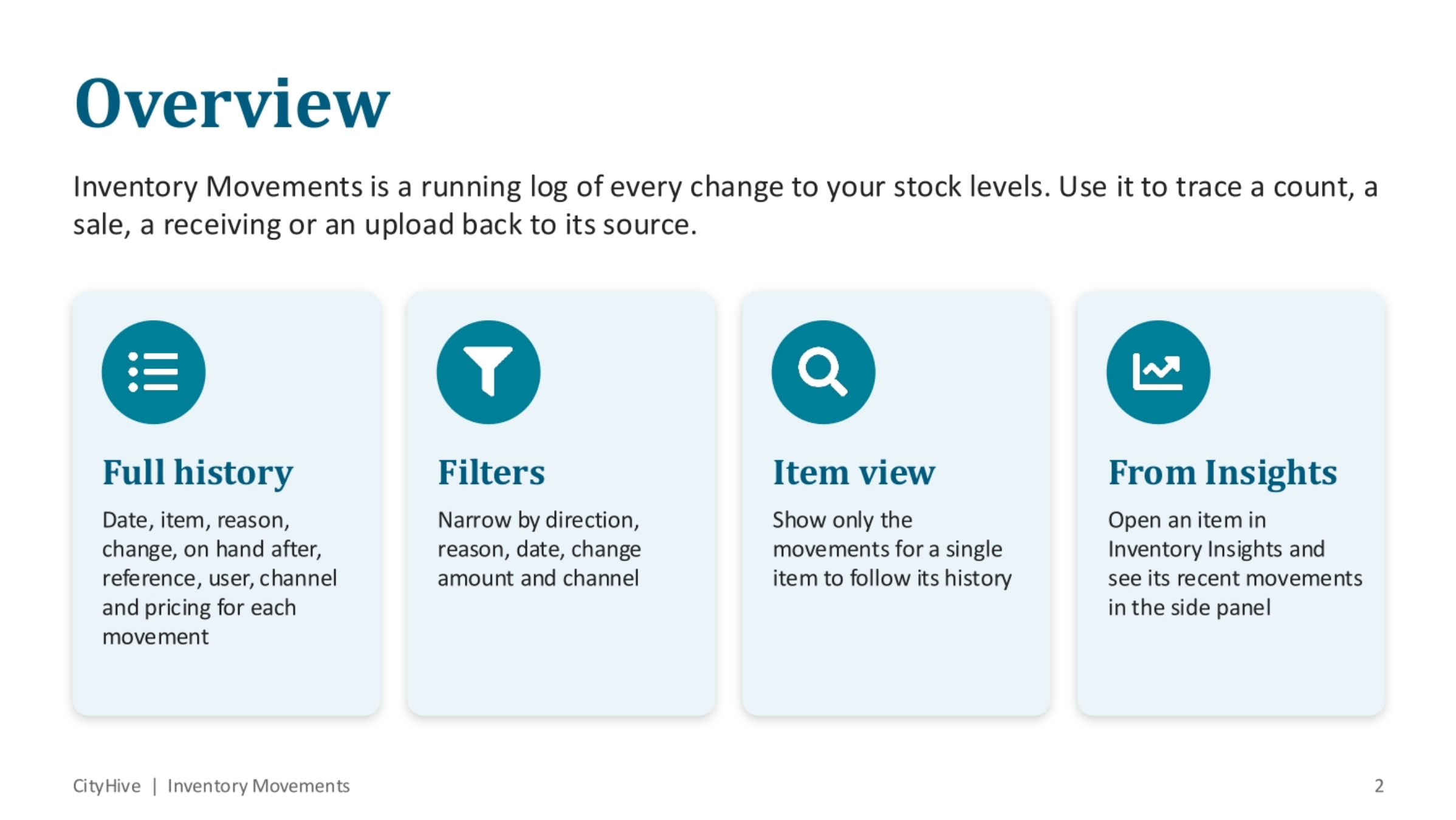
Inventory Movements provides a comprehensive, running log of every change to your stock levels. This powerful tool allows you to trace any adjustment, whether it's a count, a sale, a receiving, or an upload, back to its original source. You can view a full history, apply various filters to narrow down results, examine movements for a single item, or access recent movements directly from Inventory Insights.
3. Opening Inventory Movements
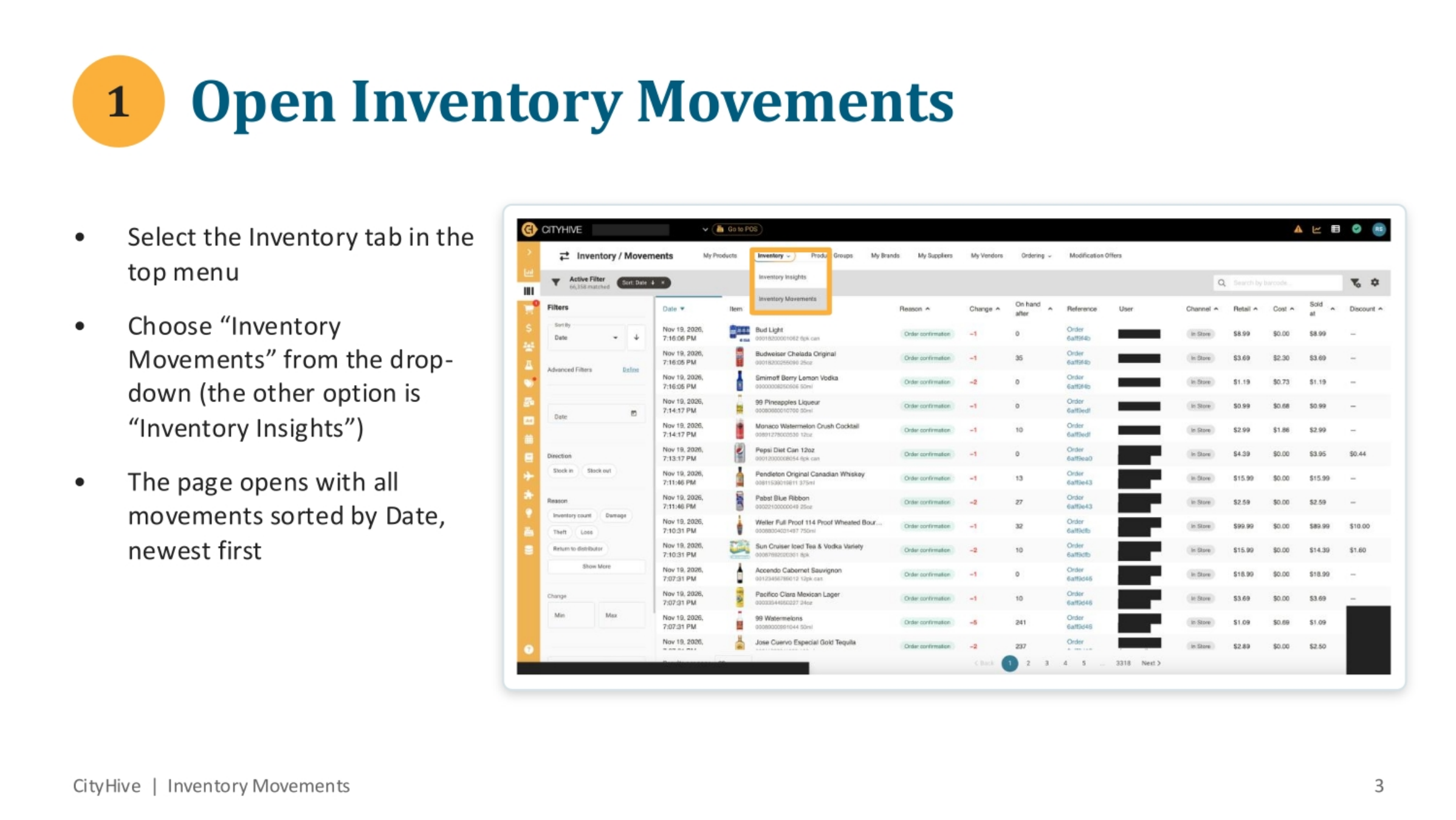
To begin, navigate to the Inventory tab located in the top menu. From the drop-down options, select "Inventory Movements." Note that "Inventory Insights" is a separate, distinct option. Once selected, the page will load, displaying all inventory movements, automatically sorted by date with the newest entries appearing first. This ensures you always see the most recent activity at a glance.
4. Understanding the Movements List
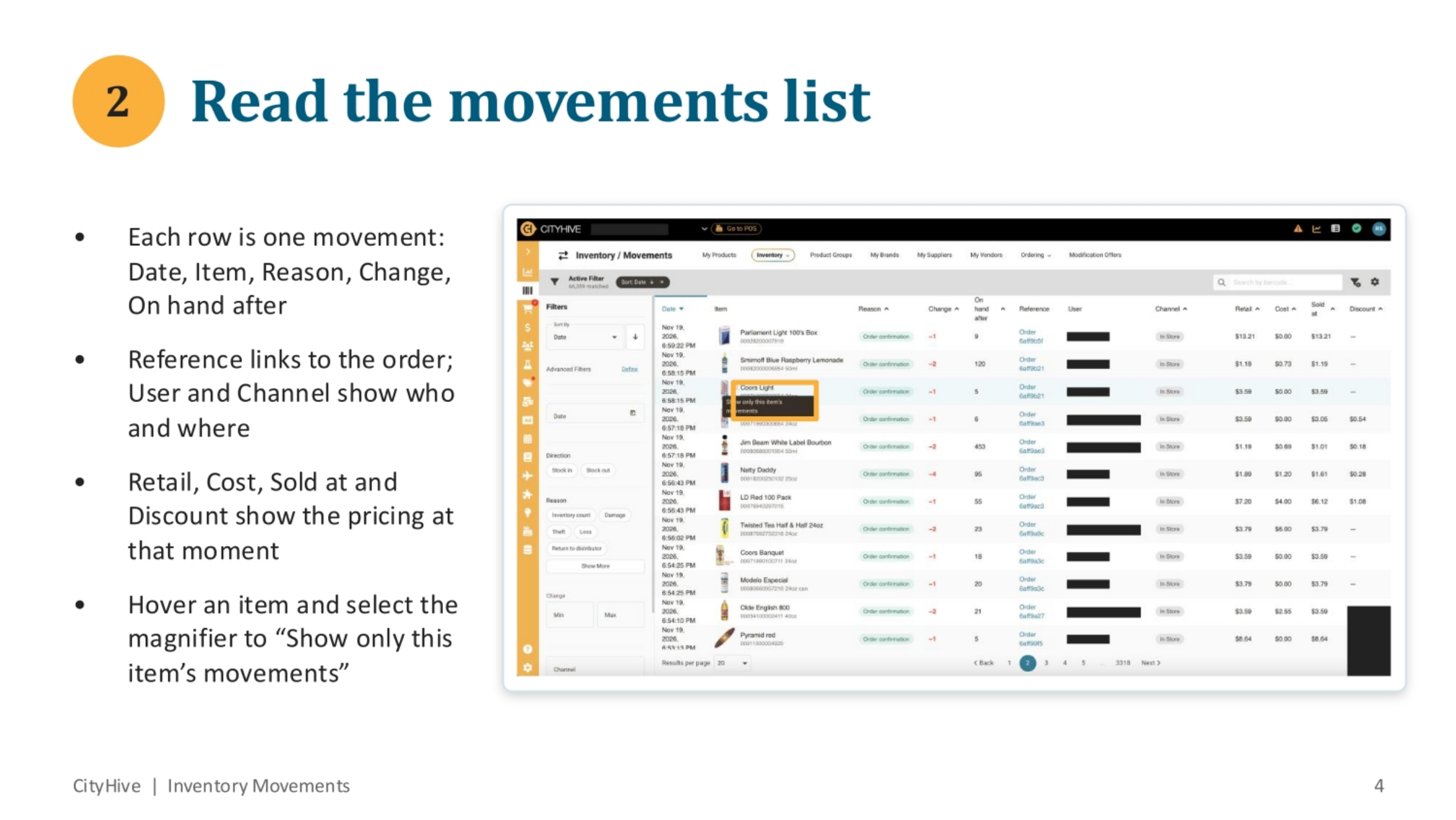
Each row in the movements list represents a single inventory transaction, detailing the date, item, reason for the change, the quantity adjusted, and the on-hand count after the movement. Reference links provide direct access to the associated order, while the User and Channel fields indicate who made the change and where it occurred. Additionally, the Retail, Cost, Sold at, and Discount columns display the exact pricing at the moment of that specific movement. For a focused view, simply hover over an item and select the magnifier icon to "Show only this item's movements."
5. Tracking a Single Item's Movements
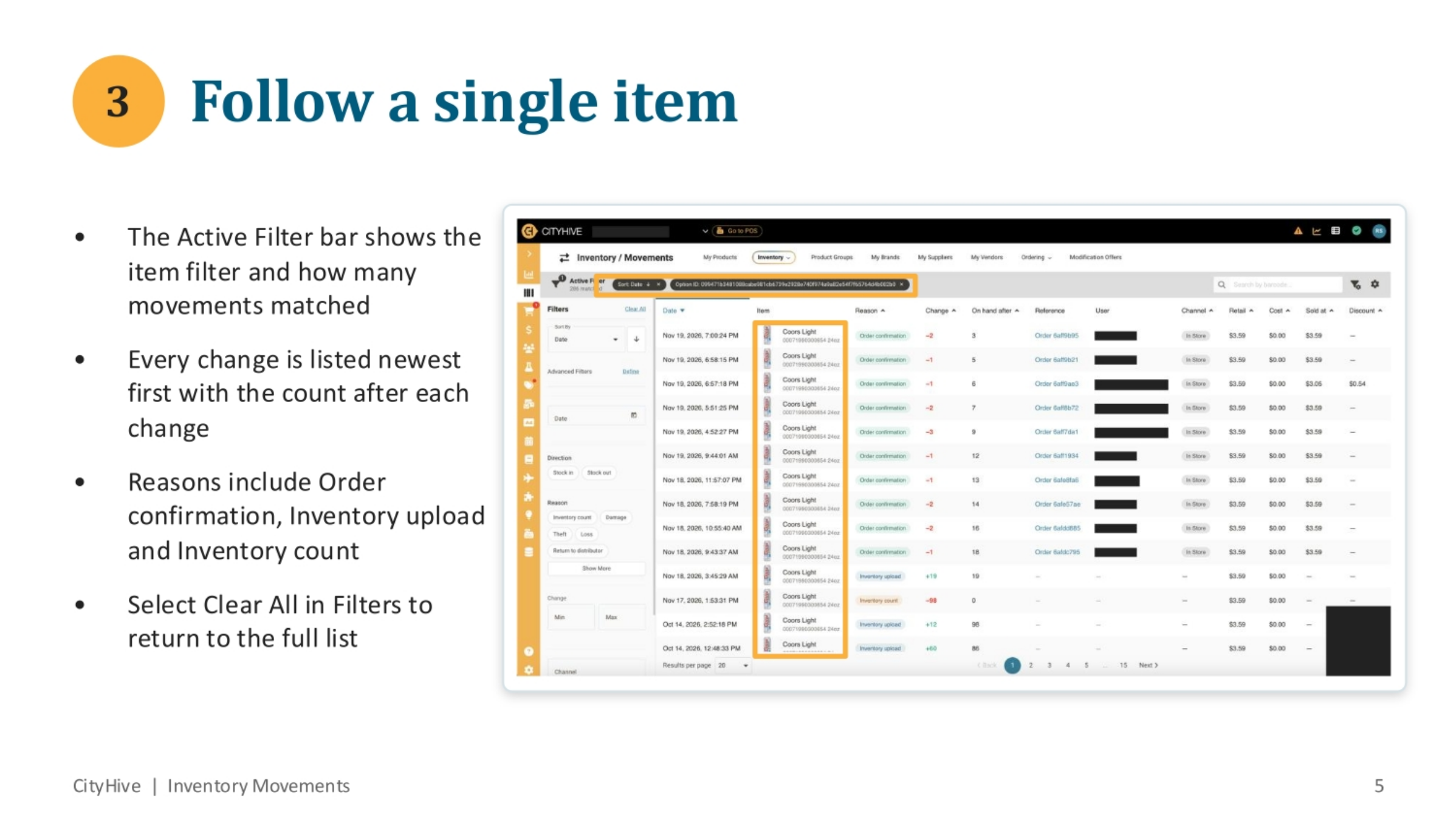
When focusing on a specific item, the Active Filter bar clearly displays the item filter in use and the total number of matched movements. Every change related to that item is listed, with the newest entries appearing first, along with the updated count after each adjustment. The reasons for these movements are clearly indicated, including order confirmations, inventory uploads, and inventory counts. To return to the complete list of all inventory movements, simply select "Clear All" within the Filters section.
6. Refining Results with Filters
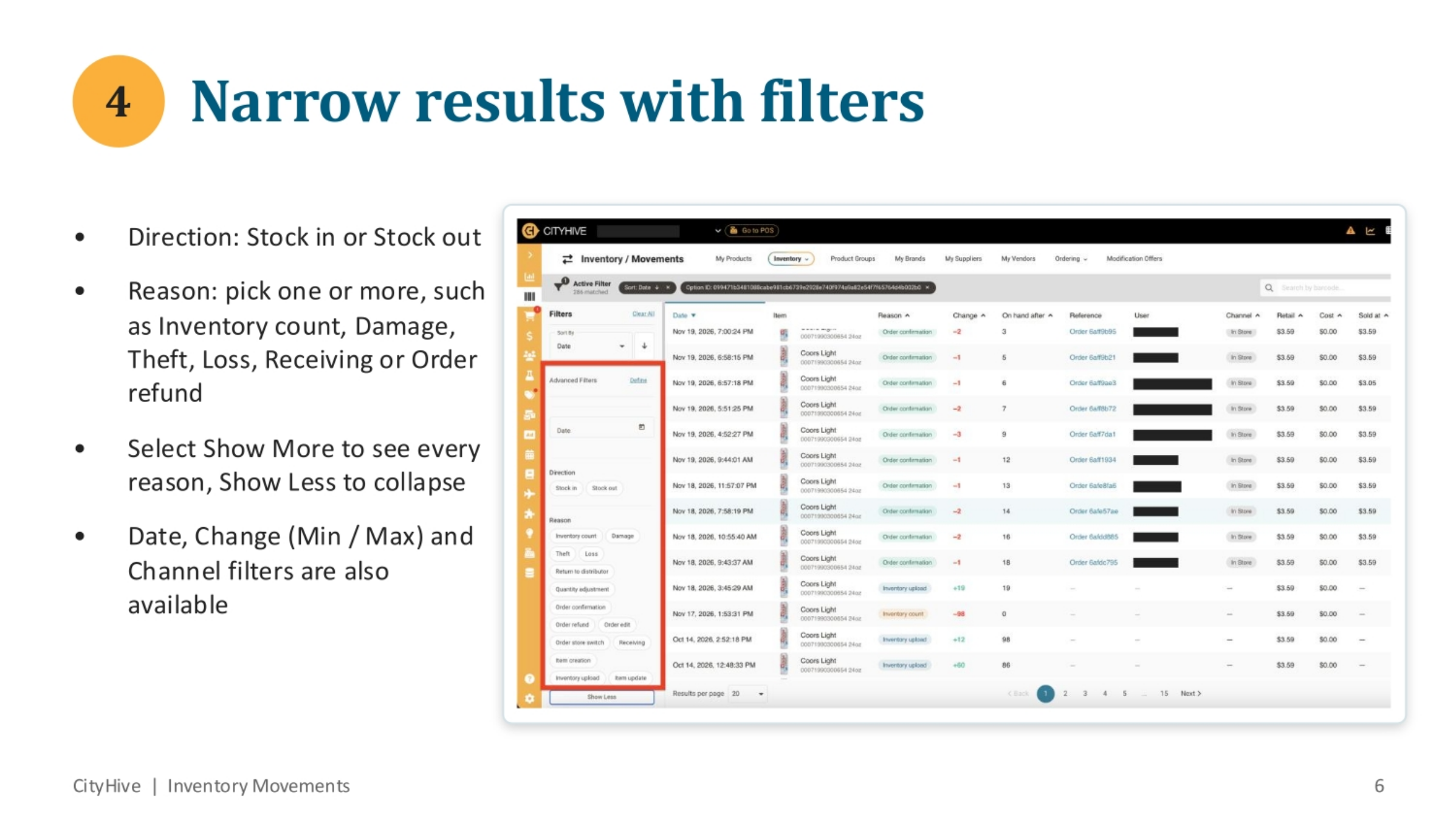
To narrow down your inventory movement results, utilize the available filters. You can specify the "Direction" of stock movement, choosing between "Stock in" or "Stock out." The "Reason" filter allows you to select one or more categories, such as inventory count adjustments, damage, theft, loss, receiving, or order refunds. For a comprehensive list of all reasons, select "Show More," or "Show Less" to collapse the view. Further refine your search using filters for "Date," "Change" (with minimum and maximum values), and "Channel."
7. Accessing Movements from Inventory Insights
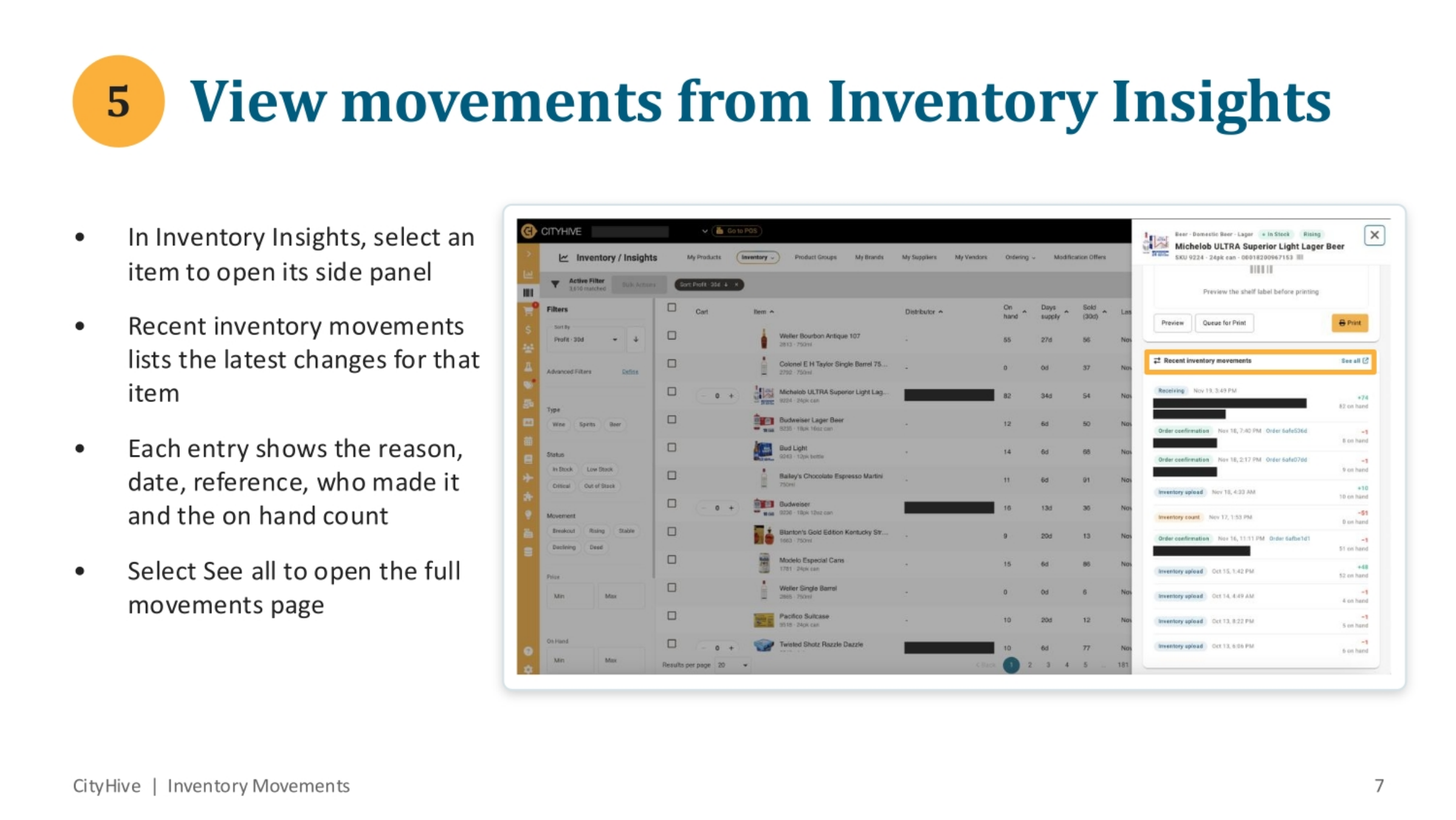
For an integrated view, you can access inventory movements directly from Inventory Insights. Simply select an item within Inventory Insights to open its dedicated side panel. This panel will display recent inventory movements, providing a concise list of the latest changes for that particular item. Each entry in this view details the reason for the movement, the date it occurred, any relevant reference, the user who made the change, and the resulting on-hand count. To explore the full history of movements for that item, select "See all."
8. Key Takeaways
To recap, use the Inventory tab to access Inventory Movements and track all stock changes. Review the reason, change, and on-hand count. Apply filters to narrow results. View an item's movements directly or from Inventory Insights.