![City Hive Logo-2.png]](https://support.cityhive.net/hs-fs/hubfs/City%20Hive%20Logo-2.png?width=62&height=60&name=City%20Hive%20Logo-2.png)
Installing CityHive as a Web App for Full-Screen Access (POS)
This guide will walk you through the simple steps to install CityHive Merchants as a web application. By following these instructions, you can enjoy a seamless, full-screen experience on any device.
1. Overview: Why Install CityHive as a Web App
Installing CityHive as a web app offers several key advantages. It's a one-time installation directly from your preferred browser, whether that's Chrome, Safari, or Firefox. The installed app works seamlessly across all your devices, including mobile phones, tablets, and computers. You can launch CityHive directly from its own app icon, bypassing the need to open a browser tab first. This provides a cleaner, full-screen view, free from the browser's address or URL bar, enhancing your user experience.
2. Open the Install Icon in Your Browser
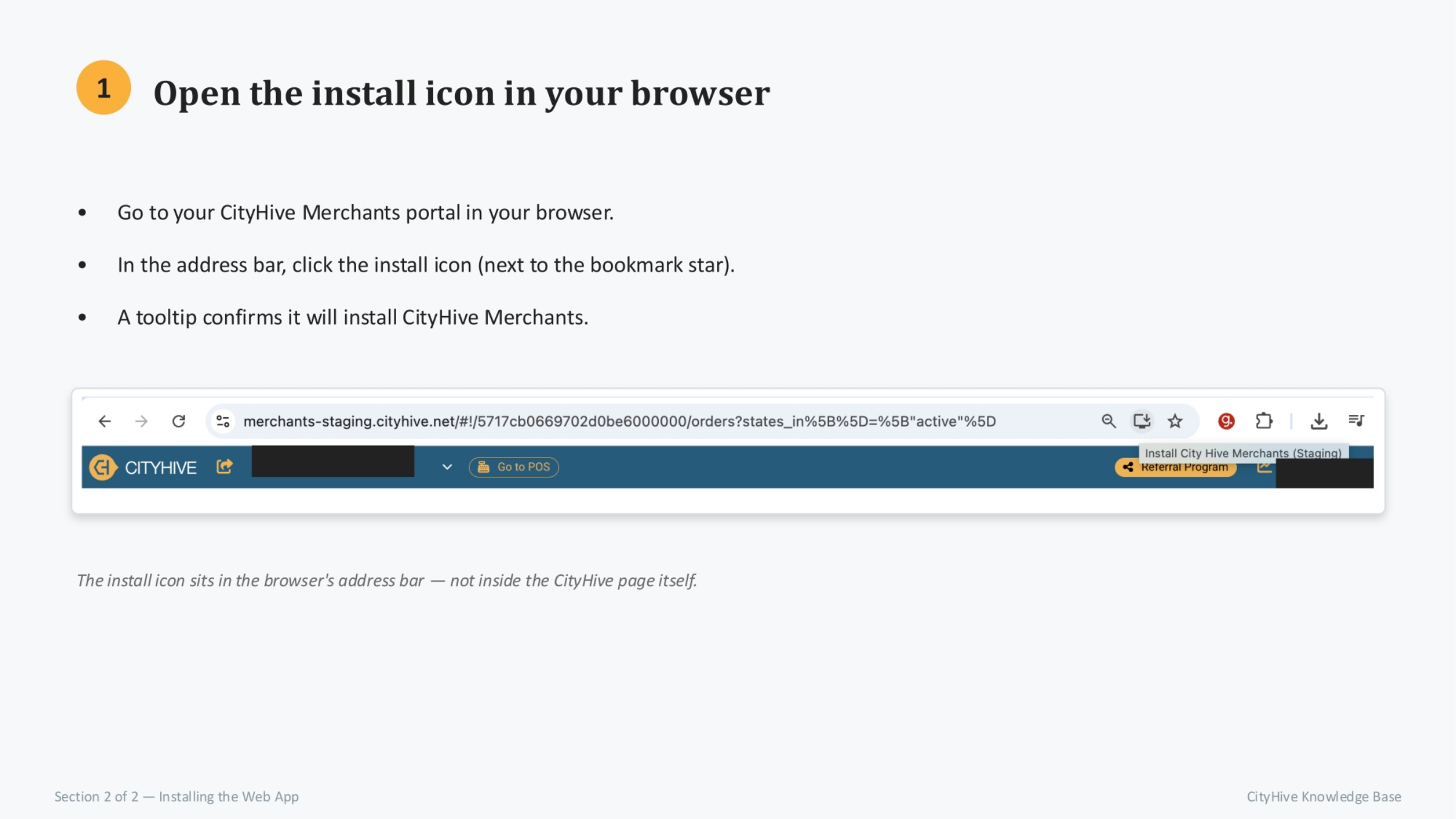
To begin the installation, navigate to your CityHive Merchants portal in your browser. Once there, locate the install icon within the address bar, typically positioned next to the bookmark star. A helpful tooltip will appear, confirming that clicking this icon will initiate the installation of CityHive Merchants. Remember, this icon is part of your browser's interface, not within the CityHive page itself.
3. Confirm the Installation
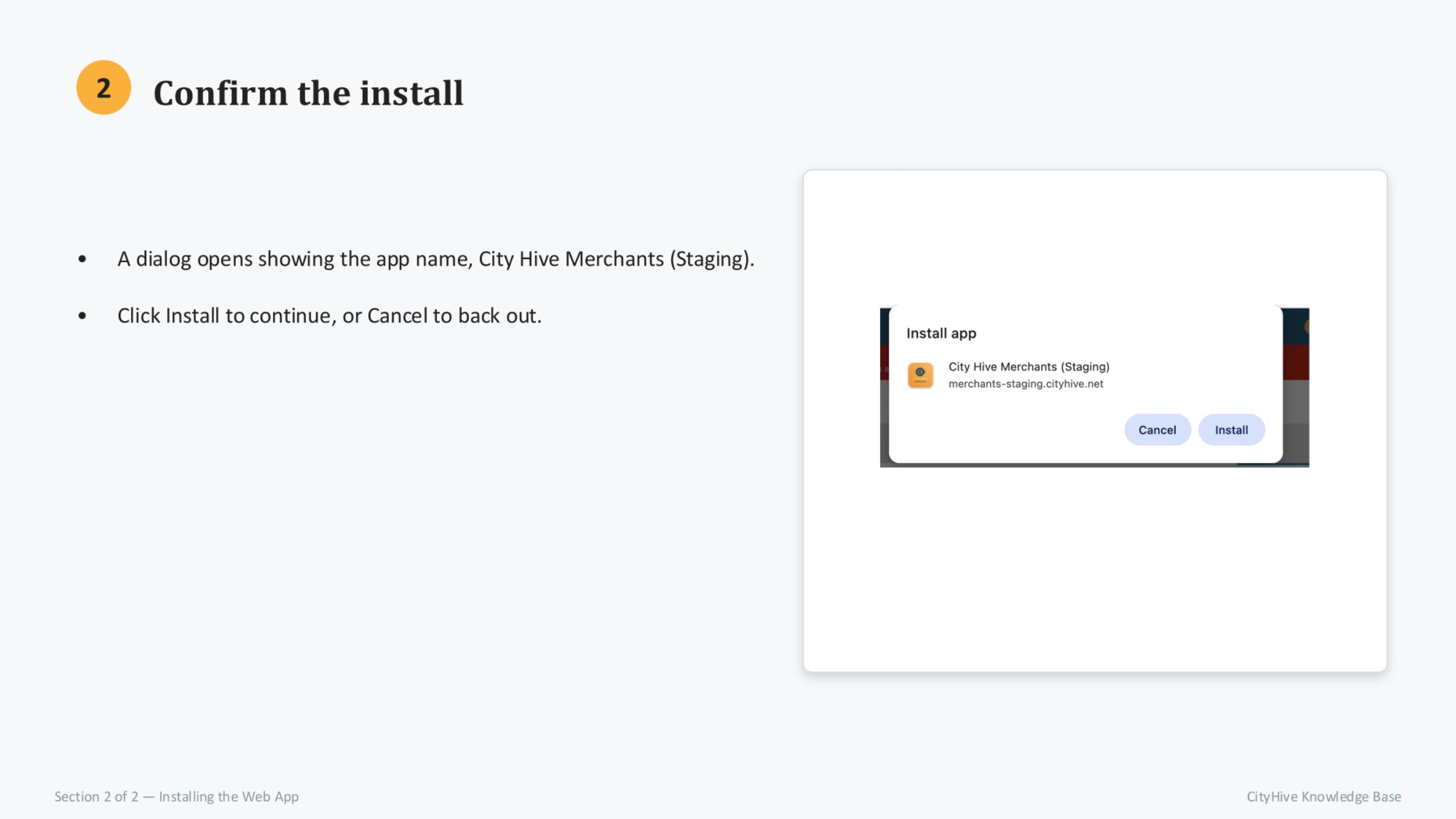
After clicking the install icon, a dialog box will appear, displaying the app's name, 'City Hive Merchants (Staging)'. This prompt ensures you are installing the correct application. To proceed with the installation, simply click the 'Install' button. If you decide not to install the app at this time, you can easily cancel the process by clicking 'Cancel'.
4. Find the App Icon
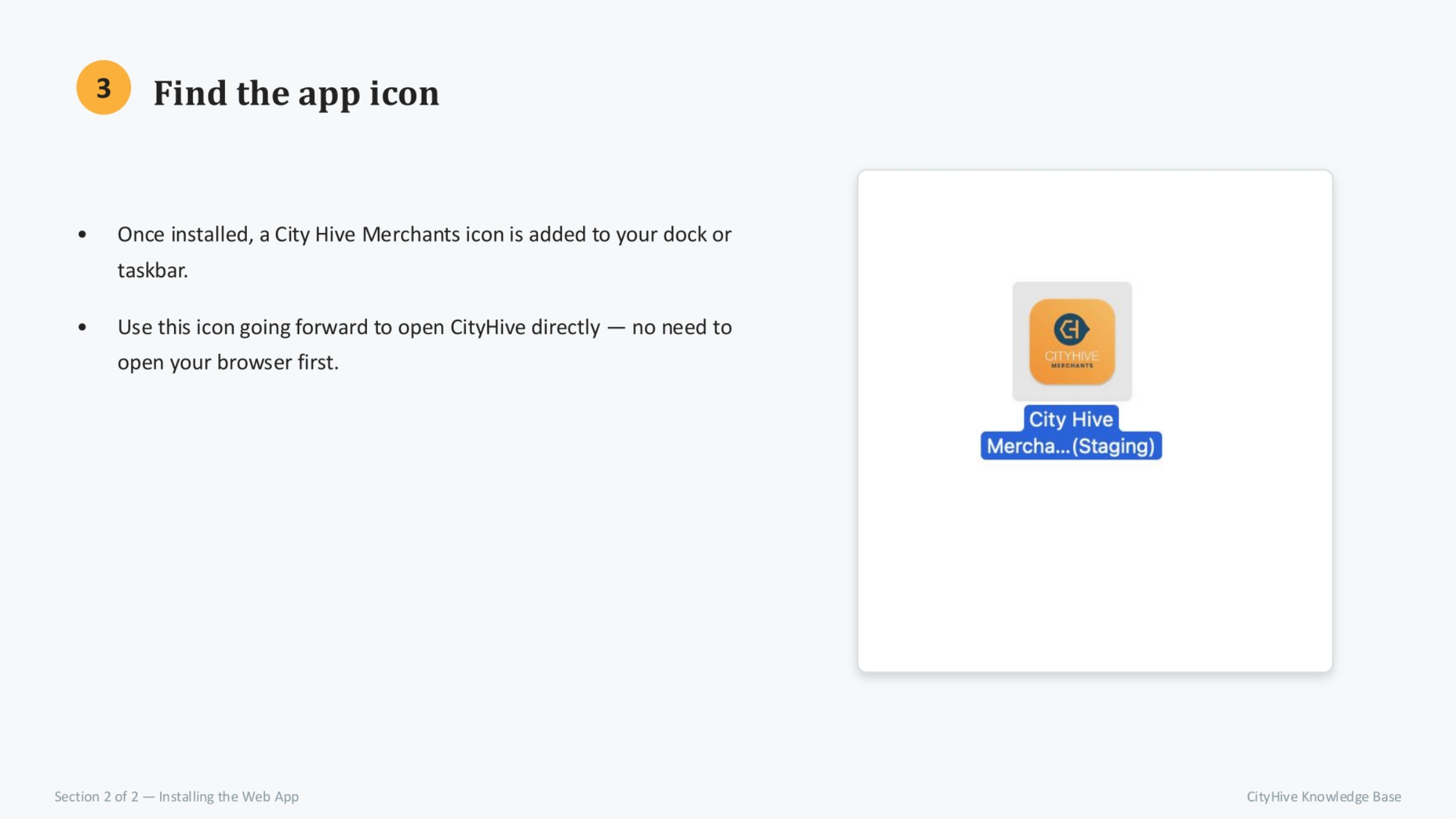
Once the installation is complete, a new City Hive Merchants icon will be added to your device's dock or taskbar. This icon serves as your direct access point to the application. Going forward, you can use this icon to open CityHive instantly, eliminating the need to launch your web browser first. This streamlines your workflow and provides quick access to your portal.
5. Open CityHive Full Screen
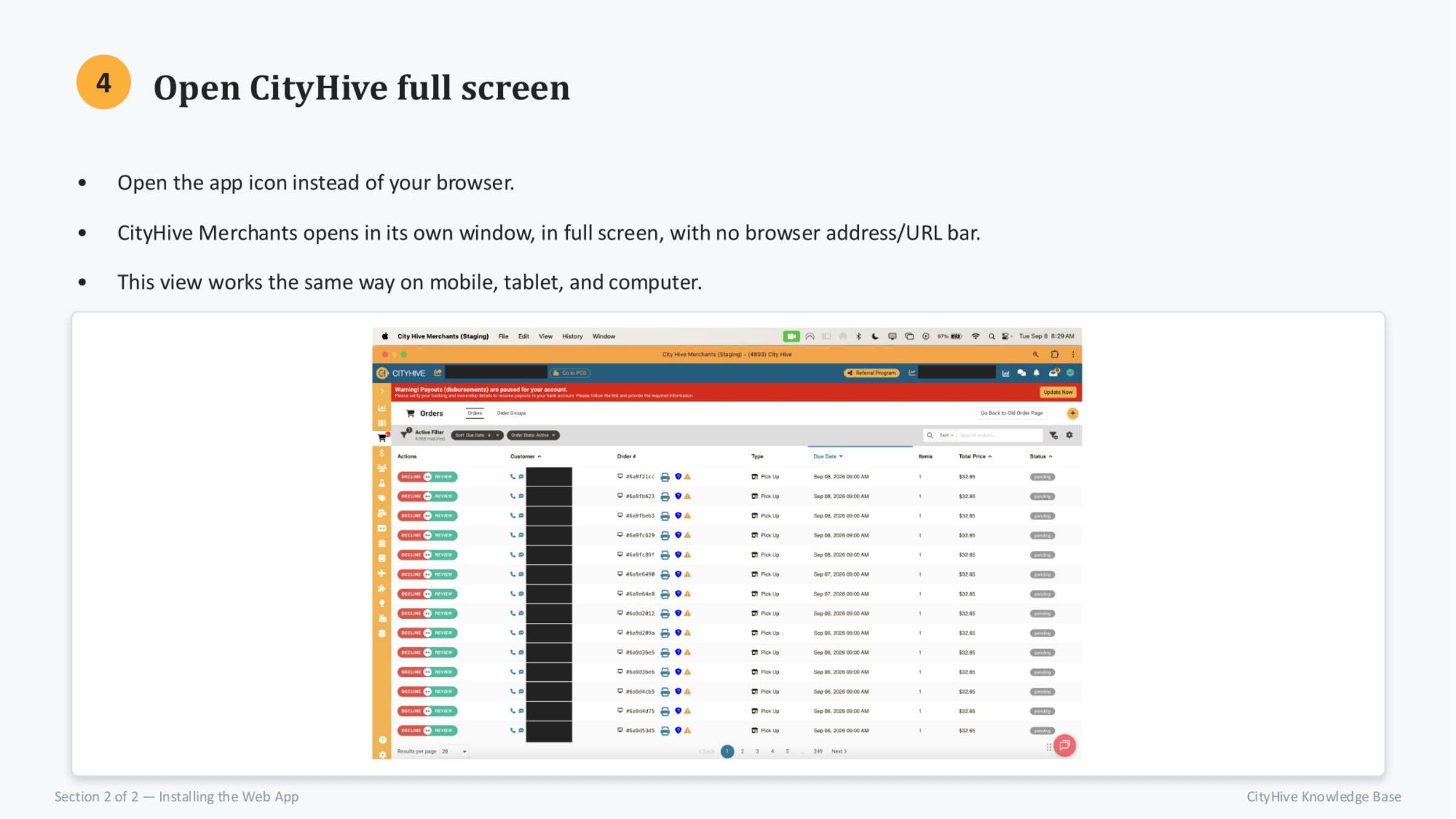
With the app installed, you can now open CityHive directly from its dedicated icon, bypassing your browser entirely. CityHive Merchants will launch in its own window, providing a full-screen experience without any browser address or URL bar clutter. This optimized view functions identically across all your devices, whether you're using a mobile phone, tablet, or computer, ensuring a consistent and efficient user interface.
6. Recap: Installing CityHive as a Web App
To recap, the process involves opening CityHive Merchants in your browser and clicking the install icon in the address bar. Next, confirm the installation in the dialog that appears. Then, locate the new City Hive Merchants icon in your dock or taskbar. Finally, use this app icon for a full-screen experience without a URL bar on any of your devices.