![City Hive Logo-2.png]](https://support.cityhive.net/hs-fs/hubfs/City%20Hive%20Logo-2.png?width=62&height=60&name=City%20Hive%20Logo-2.png)
Cash Management Training Guide (POS)
This training guide provides essential information on effective cash management practices. We will cover everything from opening your register to closing out the drawer at the end of the day.
1. What This Guide Covers
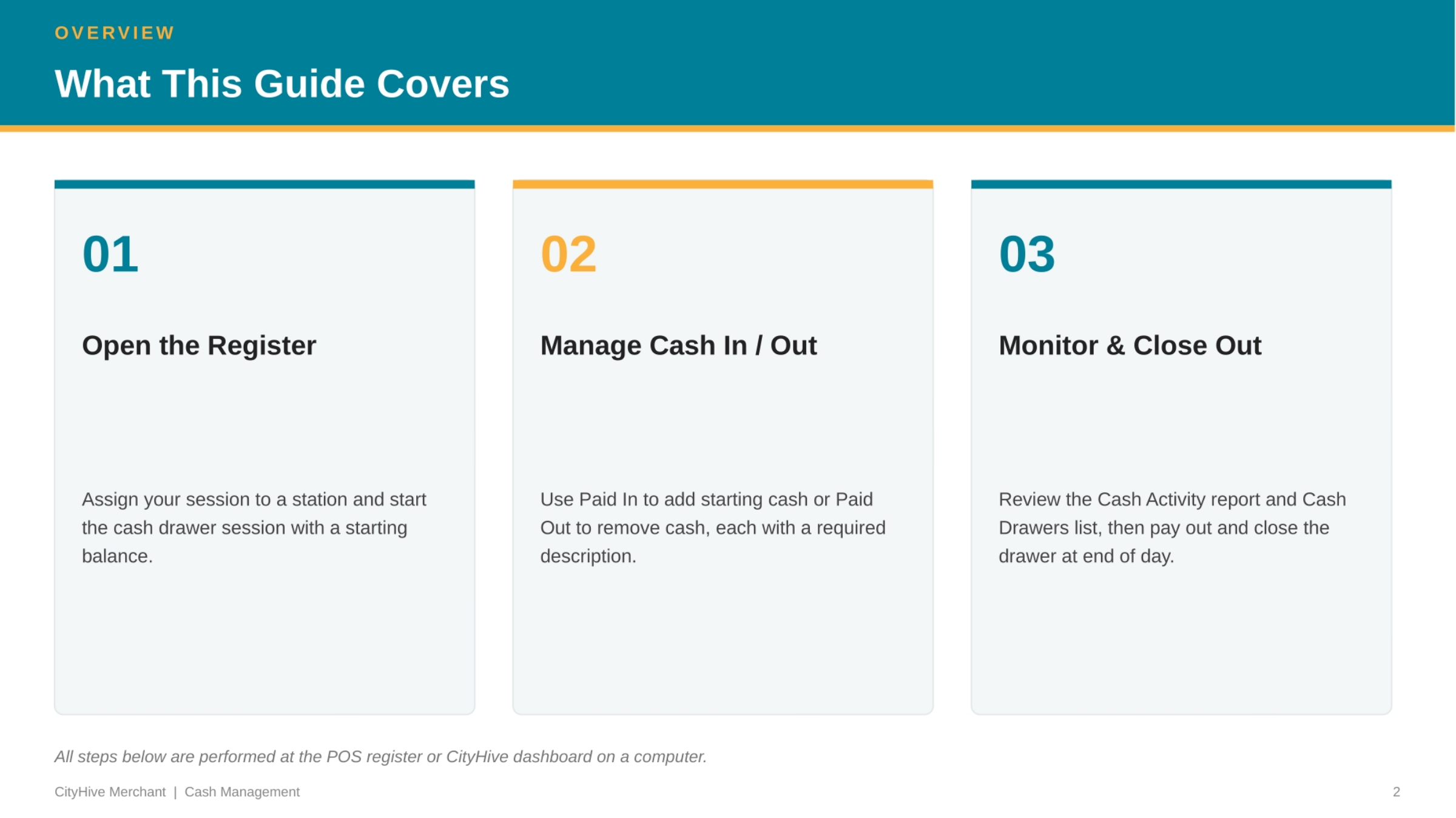
This guide provides a comprehensive overview of cash management. We'll start by explaining how to open the register and assign your session. Next, we'll cover managing cash transactions, both paid in and paid out. Finally, we'll detail how to monitor cash activity and properly close out your drawer at the end of the day.
2. Assign a Station
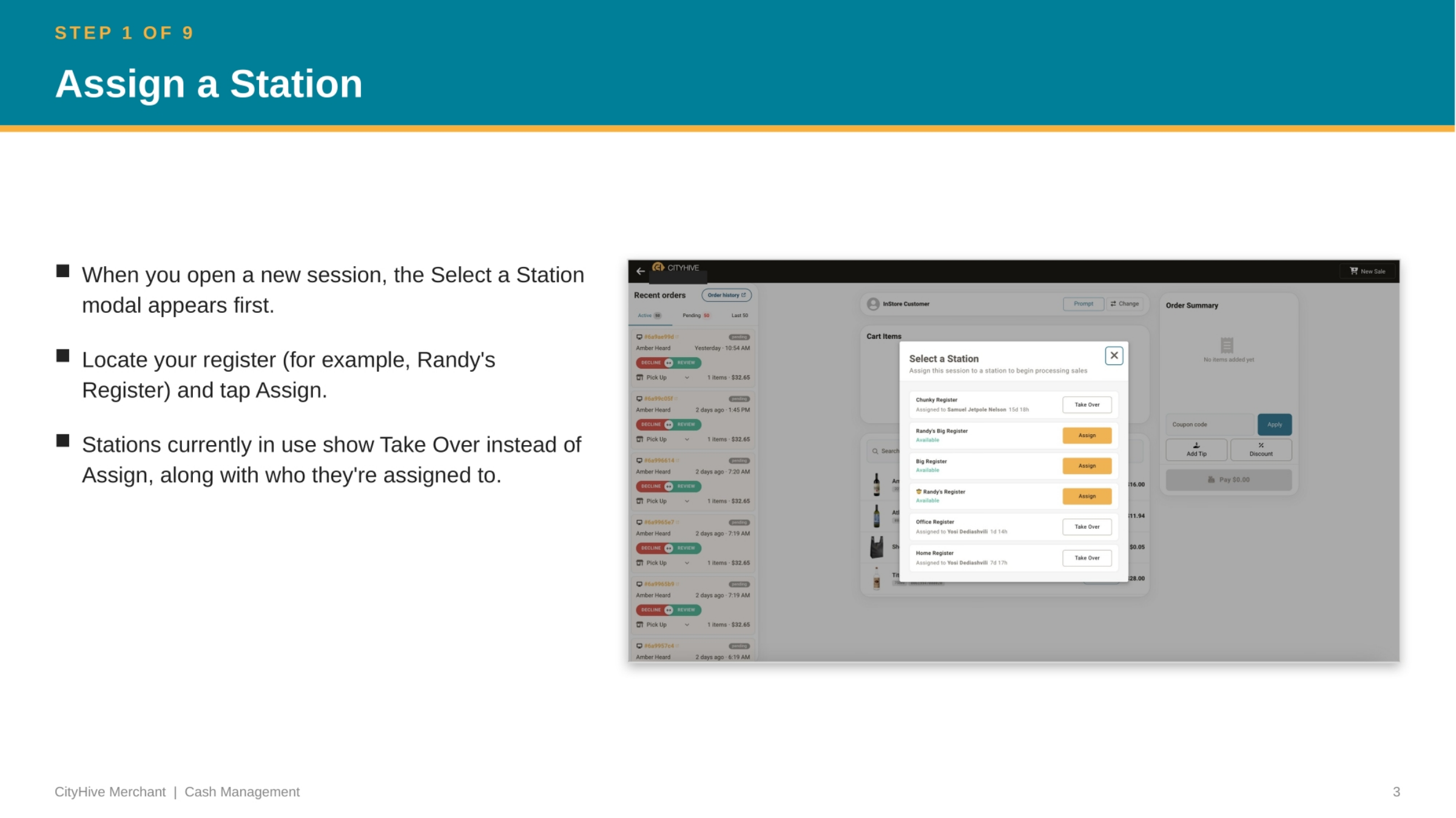
When starting a new session, the 'Select a Station' modal will automatically appear. You'll need to locate your specific register, such as 'Randy's Register,' and then tap 'Assign' to link your session. If a station is already in use, it will display 'Take Over' along with the name of the assigned user, indicating it's currently occupied by another team member.
3. Start the Cash Drawer Session
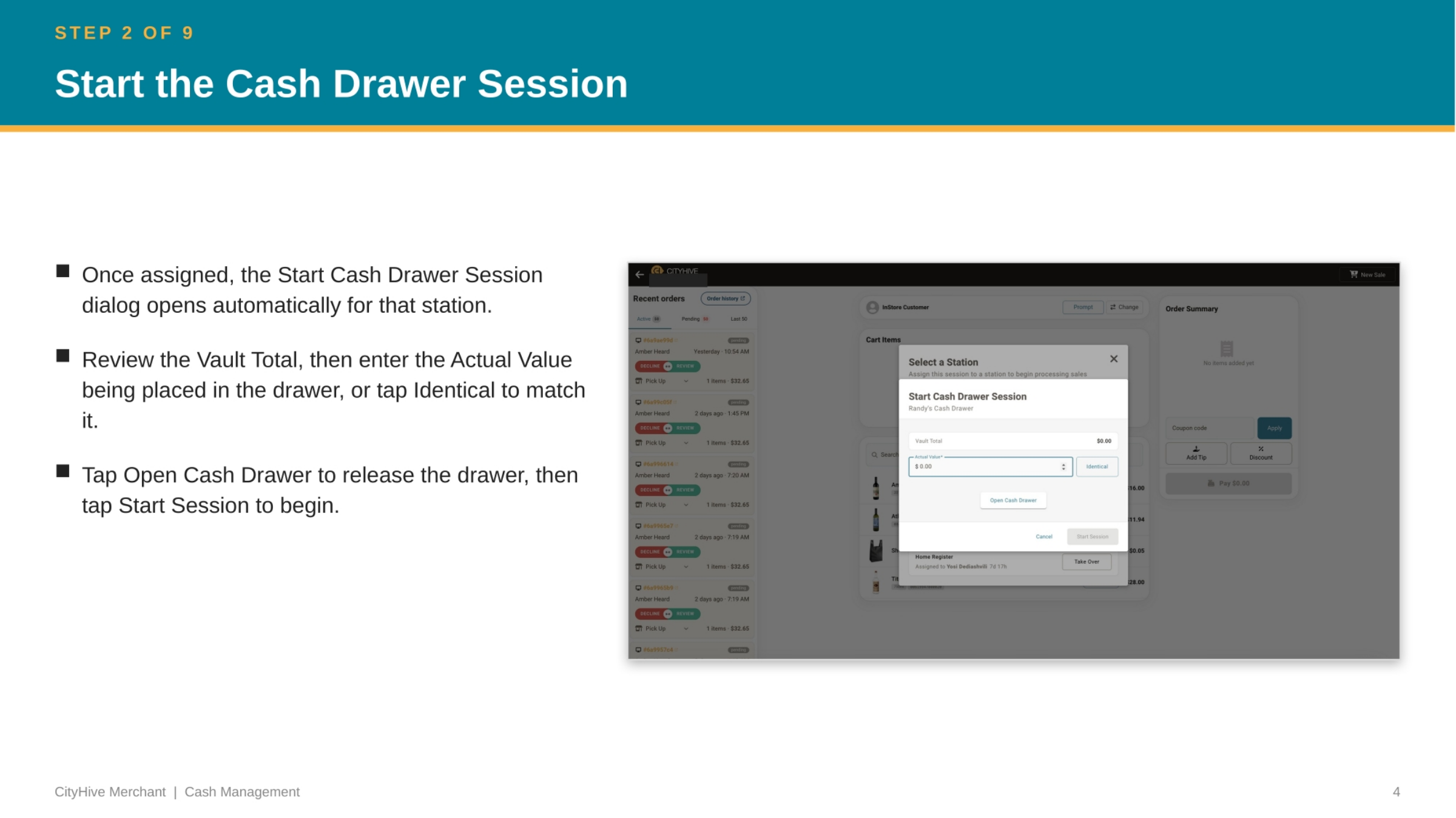
Once your station is assigned, the 'Start Cash Drawer Session' dialog will open automatically. First, review the 'Vault Total' and then accurately enter the actual cash value being placed into the drawer. You can also tap 'Identical' to match the vault total. To proceed, tap 'Open Cash Drawer' to release it, then tap 'Start Session' to begin your shift.
4. Open Paid In / Out
With your station active, access the 'Paid In / Out' option located in the top header bar. You can choose 'Paid In' to add cash to the drawer, or 'Paid Out' to remove cash. The 'Current Total' and 'New Total' fields will clearly display the drawer's balance both before and after the transaction, ensuring transparency and accuracy.
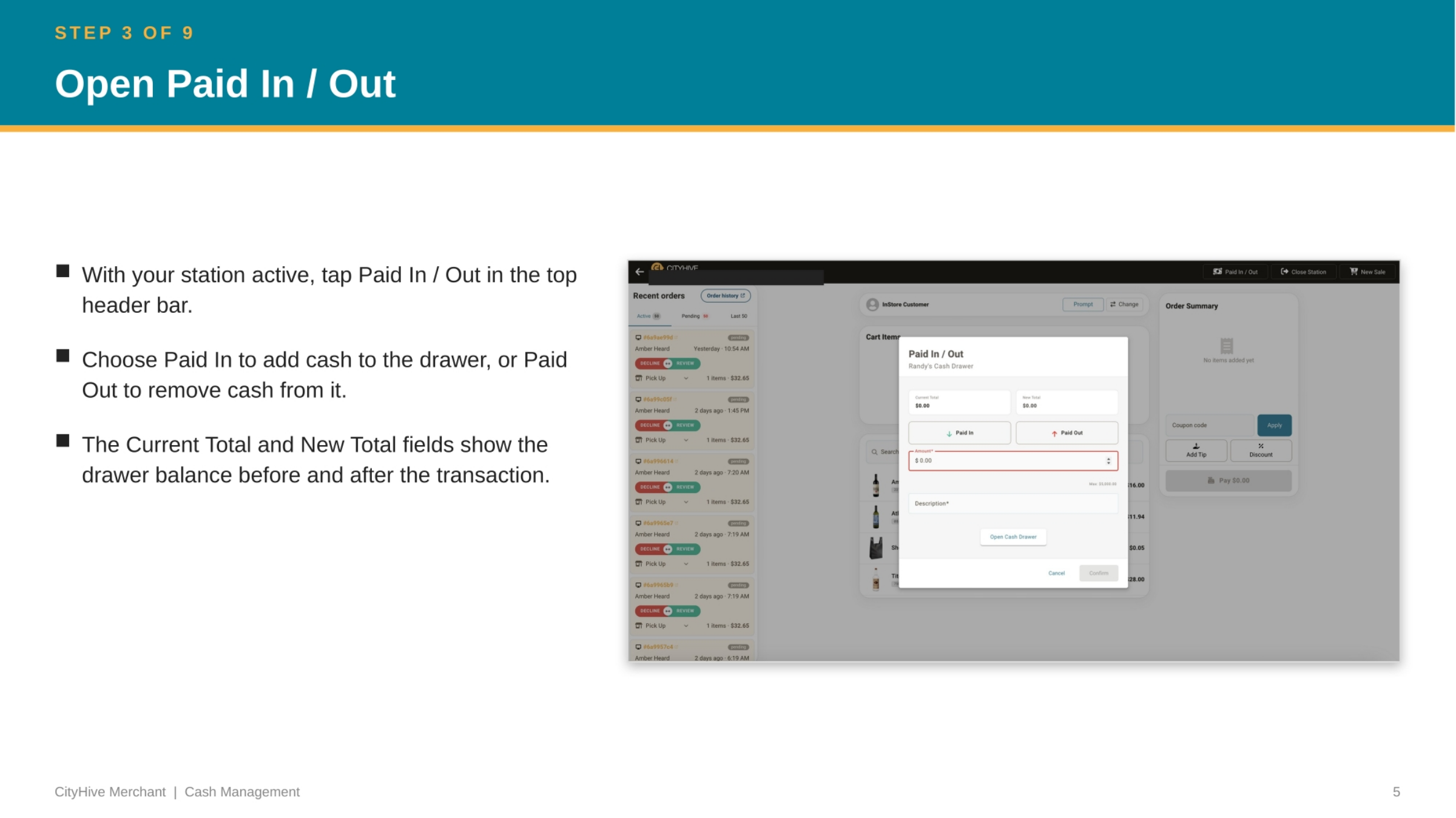
5. Enter the Amount
To complete a cash transaction, tap the 'Amount' field and accurately type in the dollar value you are adding or removing, for example, two hundred dollars. The system will display a 'Max' value, which is based on the drawer's current total. This ensures that the amount you enter does not exceed the available funds in the drawer.
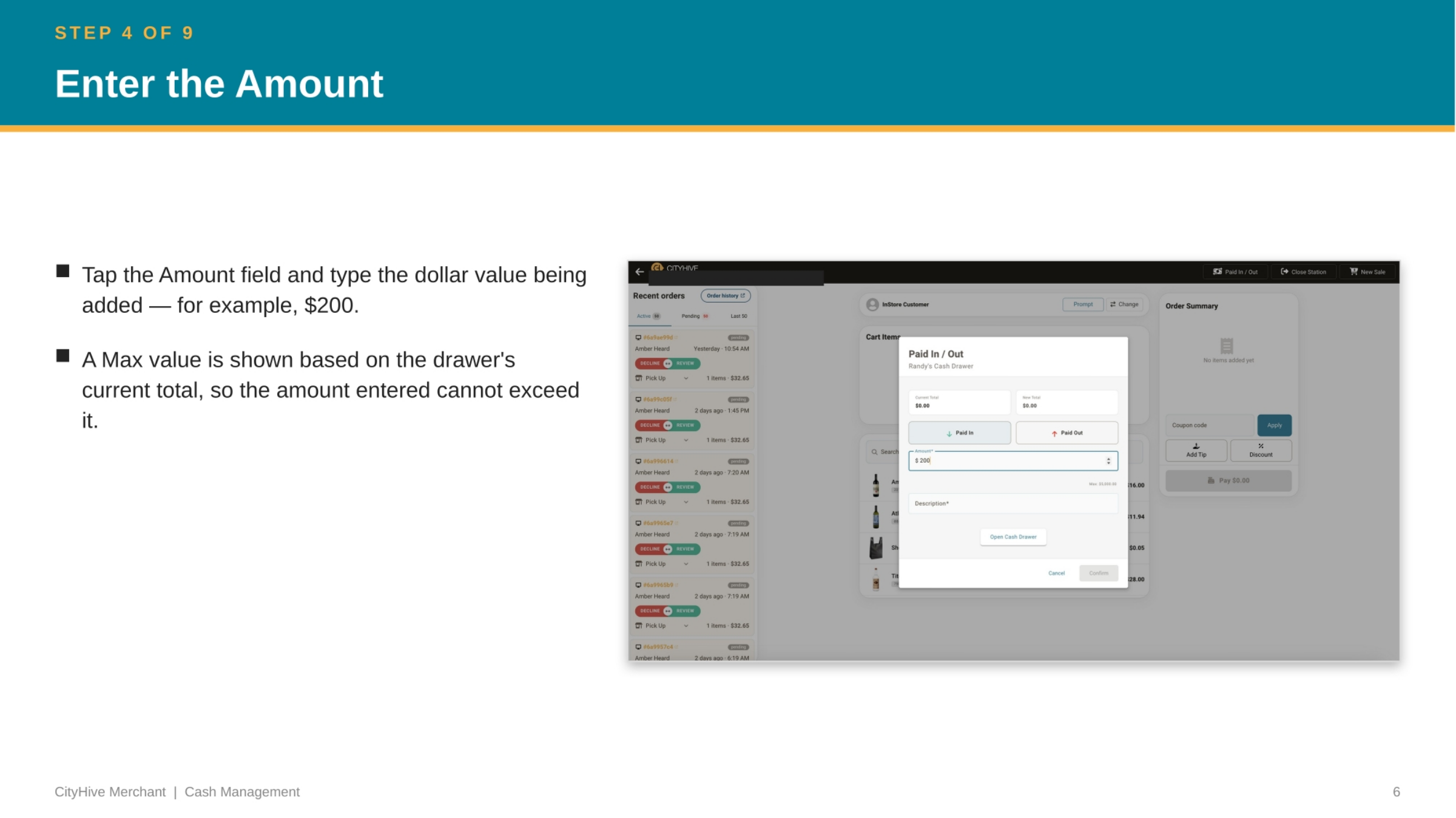
6. Add a Required Description
Before confirming any cash transaction, you must tap the 'Description' field and enter a brief note explaining the purpose of the transaction. For instance, you might write 'two hundred dollars to start day.' This description is crucial as it is saved and will later appear in the 'Cash Activity' report, providing a clear audit trail for all movements.
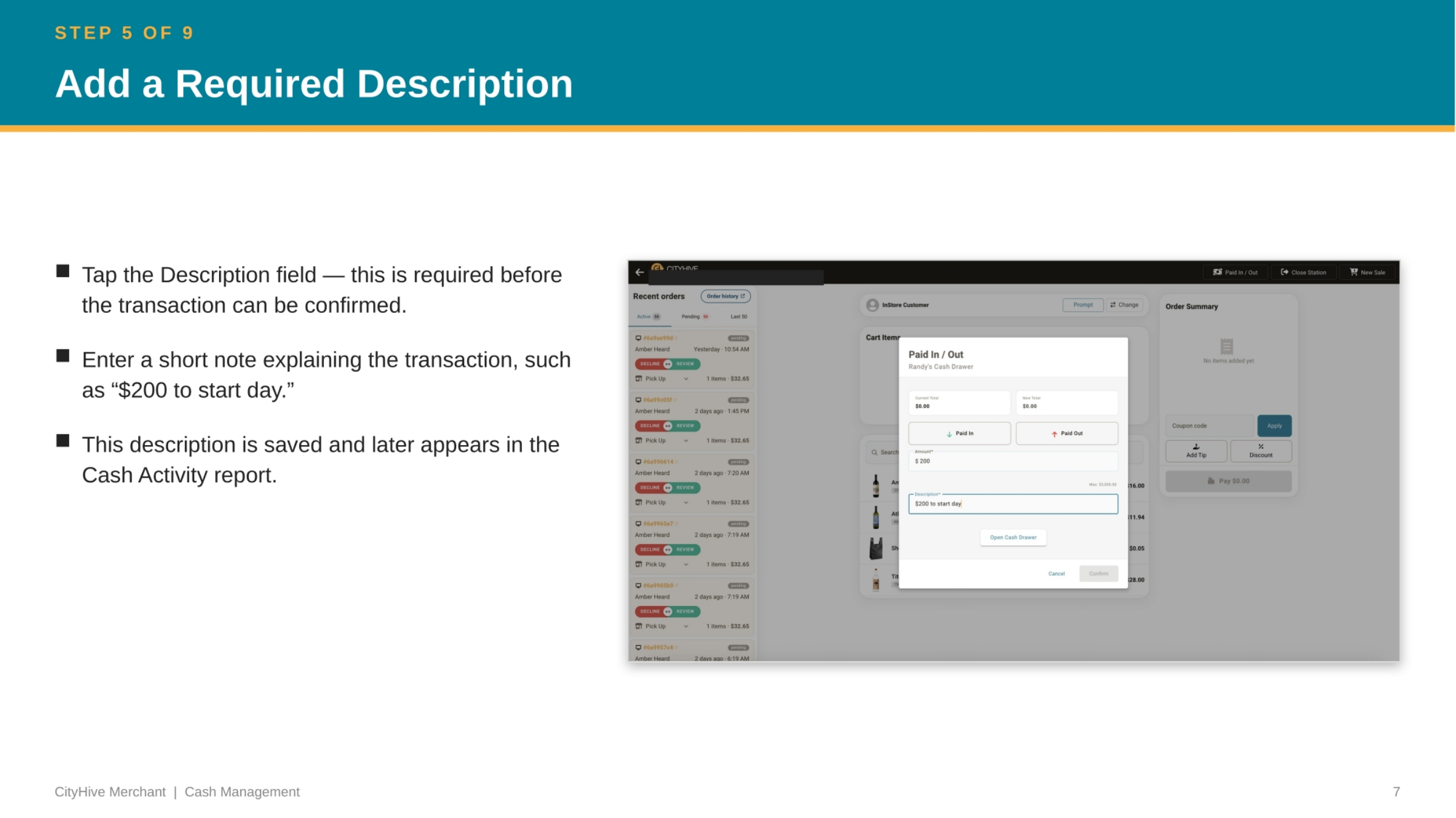
7. Confirm the Paid In
After ensuring 'Paid In' is highlighted and both the correct amount and a clear description have been entered, proceed by tapping 'Confirm.' The 'New Total' will immediately update to reflect the added cash, confirming the transaction. For example, if two hundred dollars was added, the new total will show an increase of that exact amount.
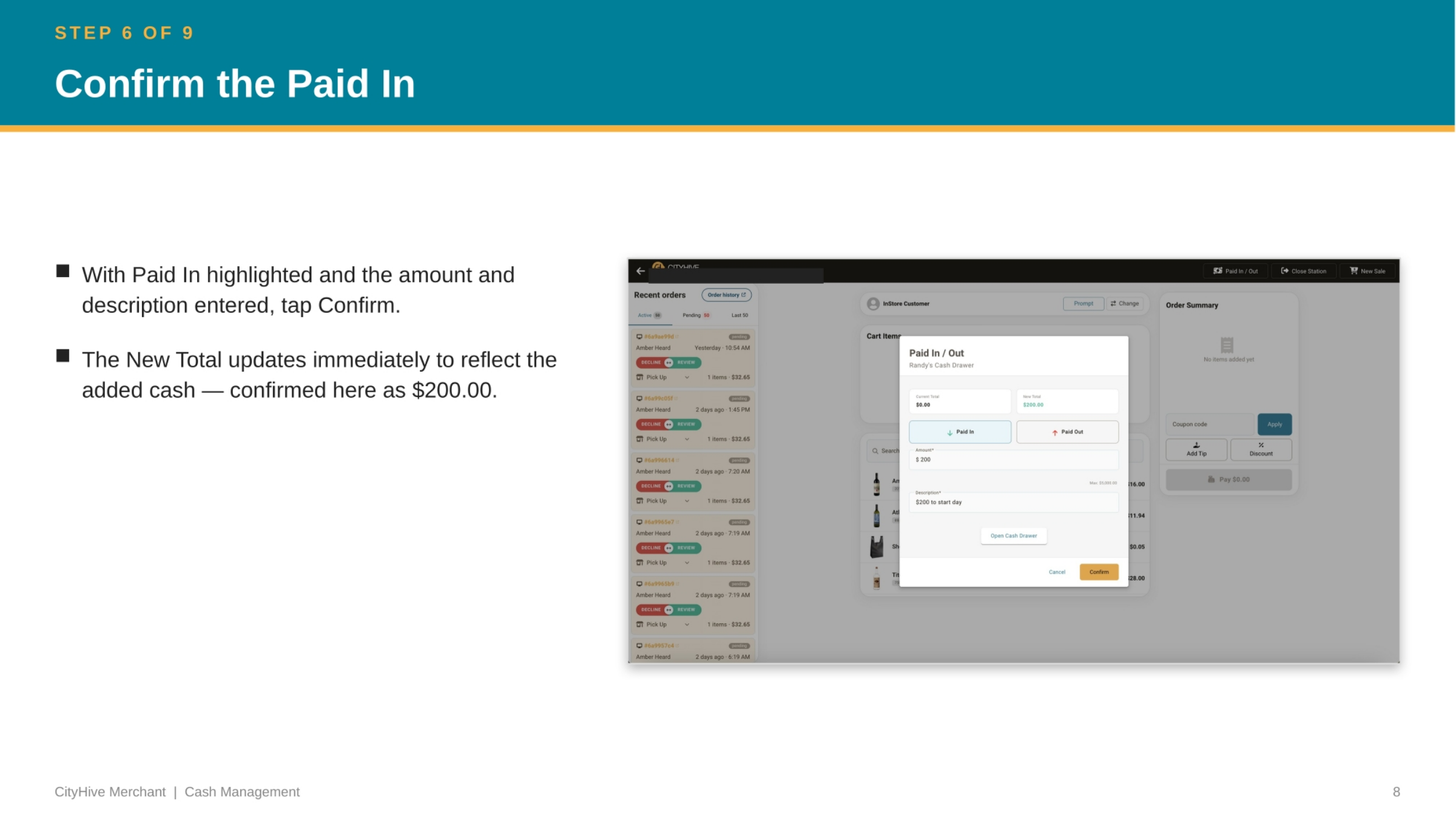
8. Review Cash Activity
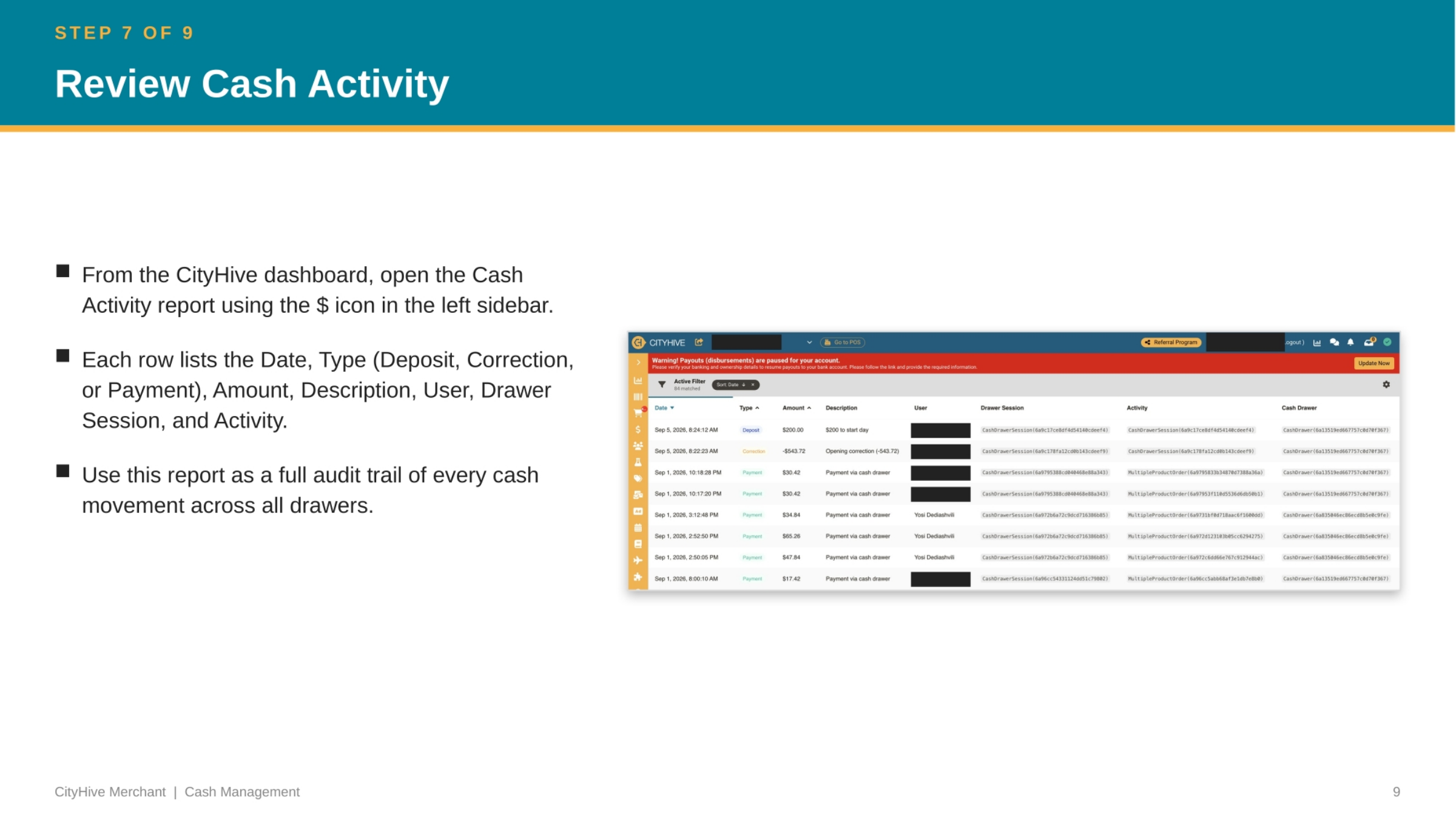
From the CityHive dashboard, you can access the 'Cash Activity' report by clicking the dollar sign icon in the left sidebar. Each row in this report provides a detailed record, including the date, type of transaction such as deposit or payment, the amount, a description, the user, the specific drawer session, and the activity. This report serves as a comprehensive audit trail for all cash movements across every drawer.
9. Review Cash Drawers
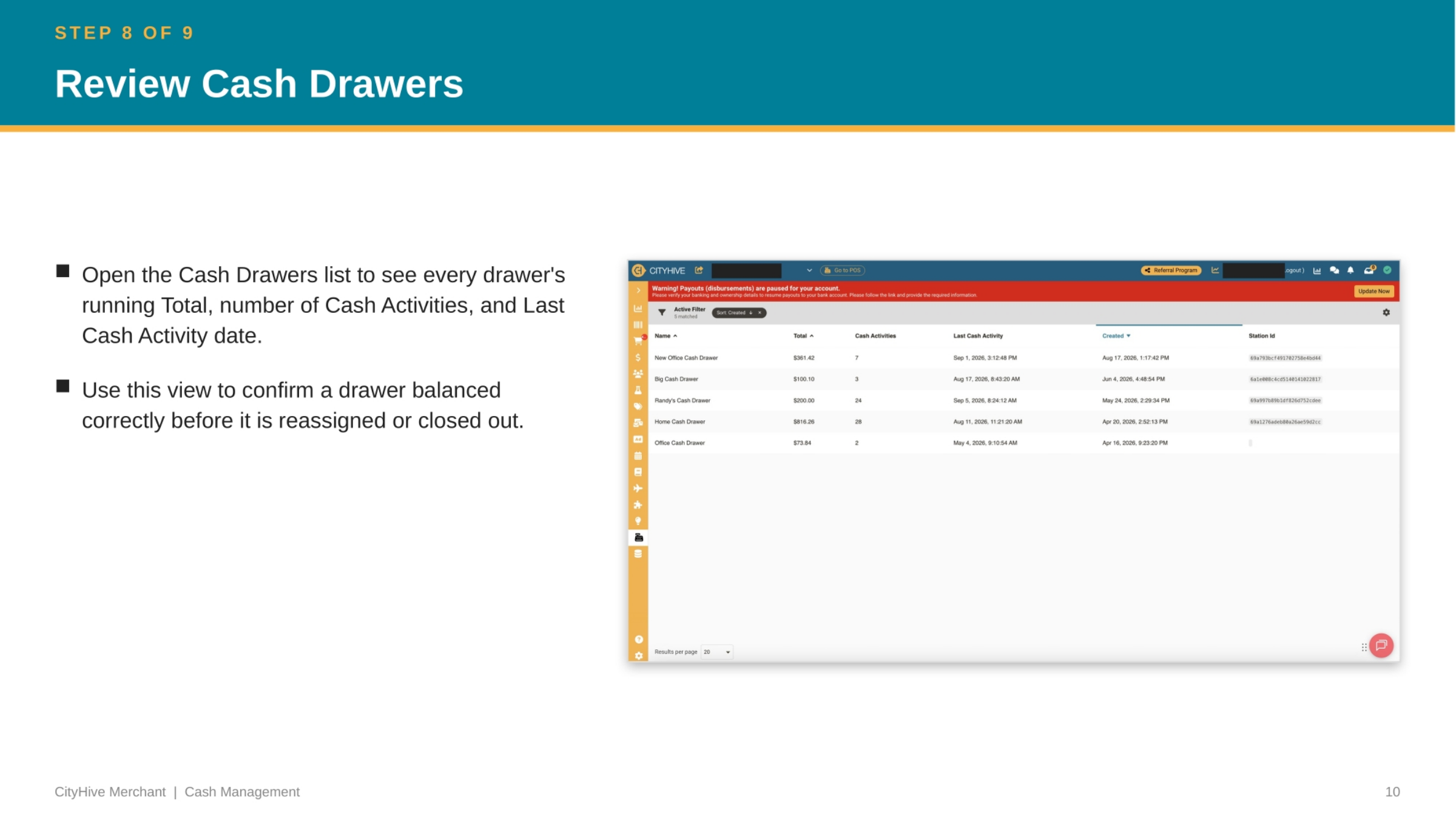
To gain a complete overview of your cash operations, open the 'Cash Drawers' list. This view displays each drawer's running total, the number of cash activities, and the date of its last cash activity. Utilize this essential view to confirm that a drawer has been balanced correctly before it is reassigned to another user or officially closed out for the day.
10. Paid Out — Close Out the Drawer
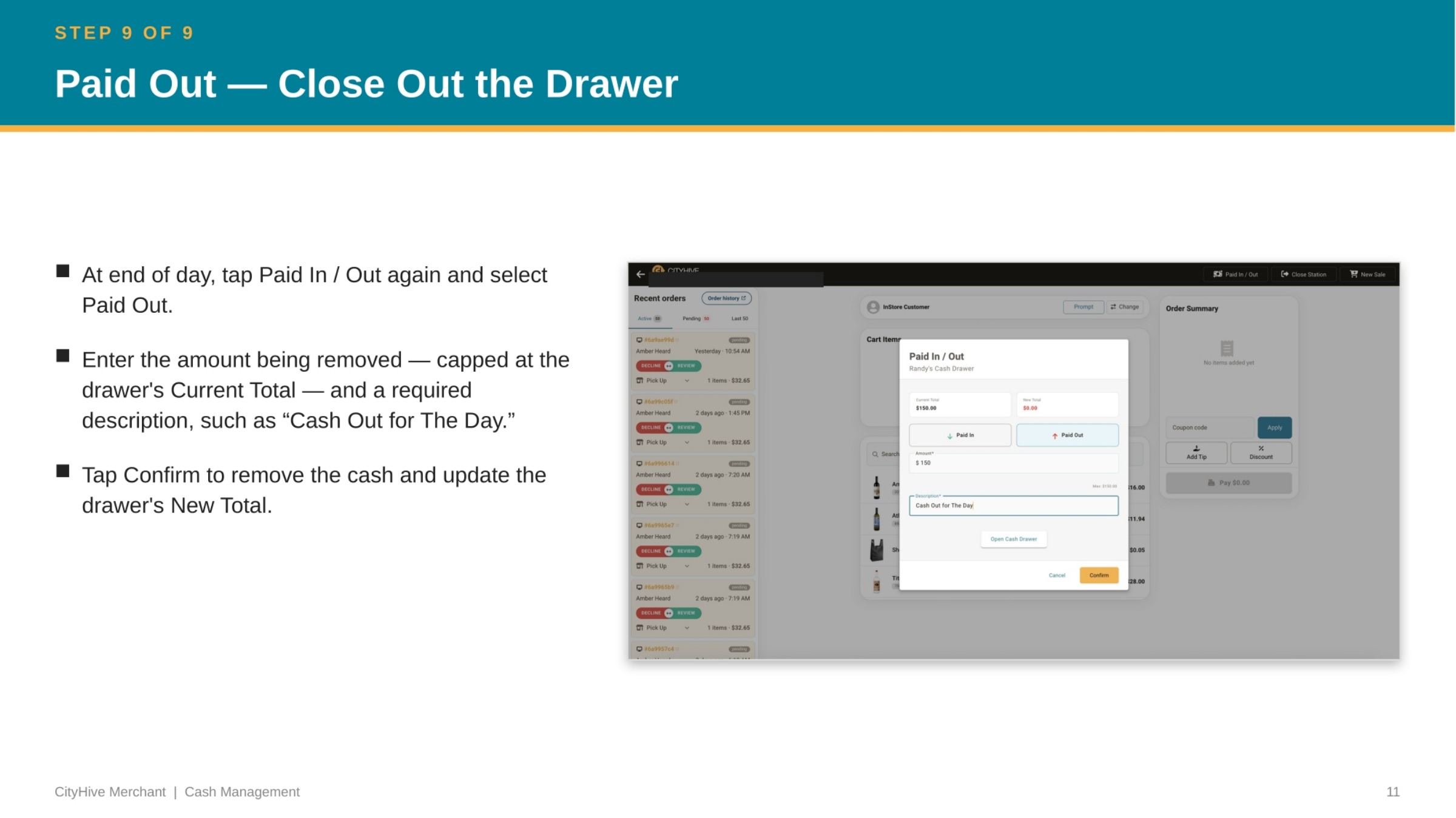
At the end of the day, tap 'Paid In / Out' again and select 'Paid Out' to close the drawer. Enter the amount of cash being removed, which is capped at the drawer's current total. Provide a required description, such as 'Cash Out for The Day.' Finally, tap 'Confirm' to remove the cash and update the drawer's new total to zero, reconciling the session.
11. Cash Management — Key Takeaways
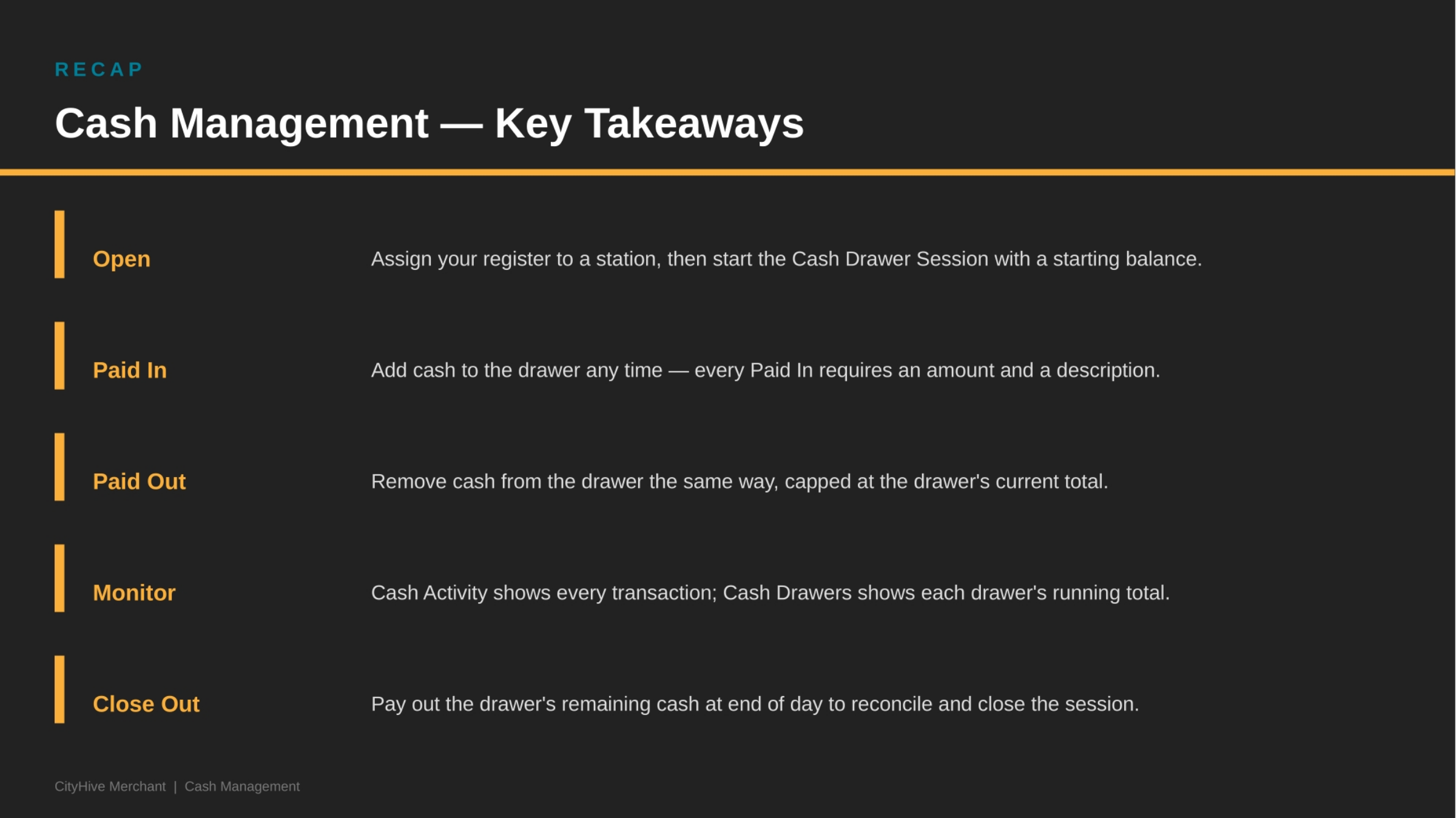
We've covered the essential steps for effective cash management. Remember to assign your register, accurately manage cash transactions, monitor activity, and properly close out your drawer daily.