![City Hive Logo-2.png]](https://support.cityhive.net/hs-fs/hubfs/City%20Hive%20Logo-2.png?width=62&height=60&name=City%20Hive%20Logo-2.png)
Bulk Shelf Label Printing
This training provides essential guidance on efficiently managing shelf label printing within Inventory Insights. We will explore how to print labels at scale, queue them for later, and track those automatically generated by price changes.
1. Overview of Bulk Shelf Label Printing
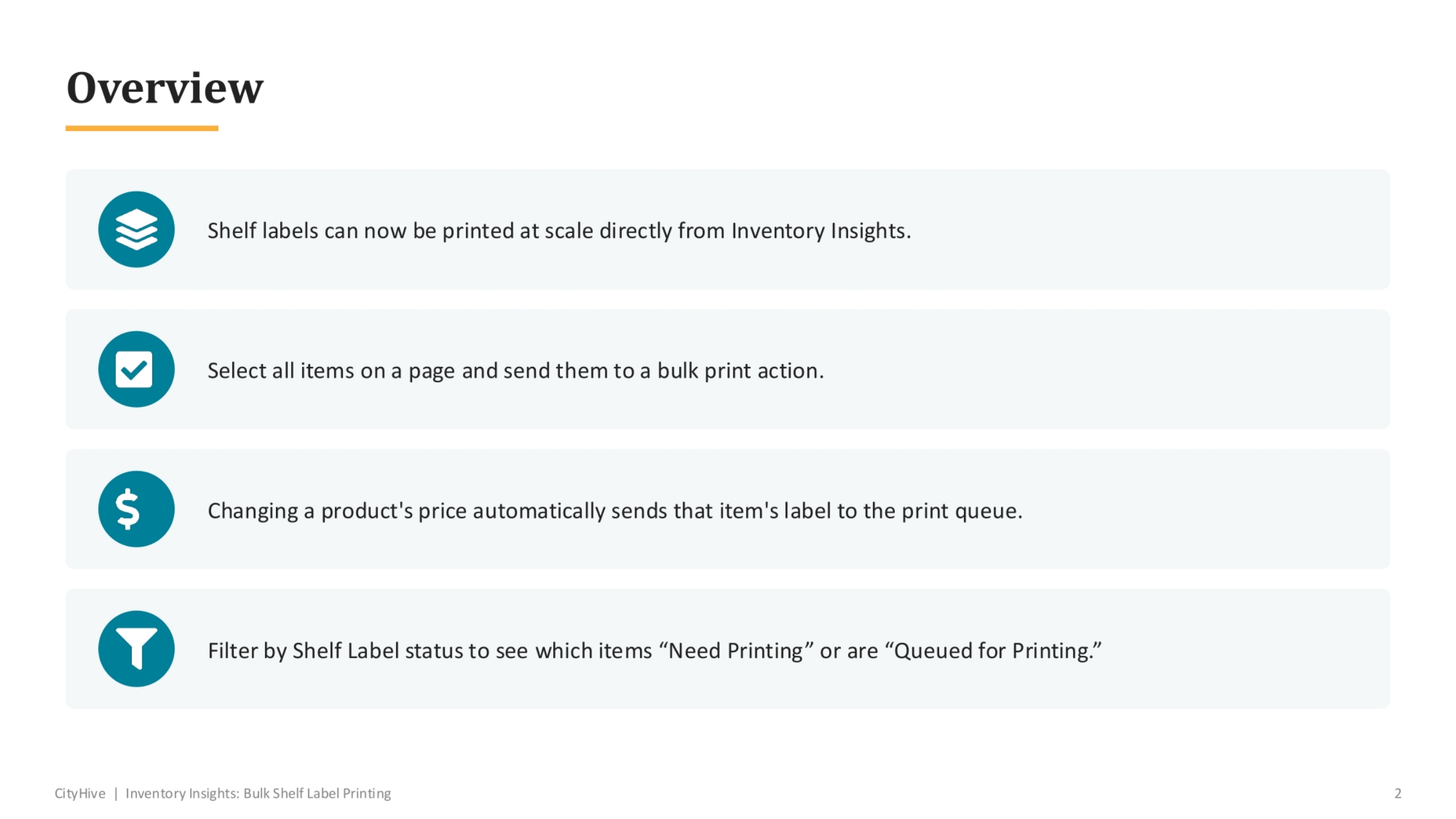
Shelf labels can now be printed at scale directly from Inventory Insights, offering significant efficiency improvements. You can select all items on a page and send them to a bulk print action. Additionally, changing a product's price automatically sends that item's label to the print queue, ensuring accuracy. You can also filter by Shelf Label status to easily identify items that 'Need Printing' or are 'Queued for Printing'.
2. Queueing a Product Label
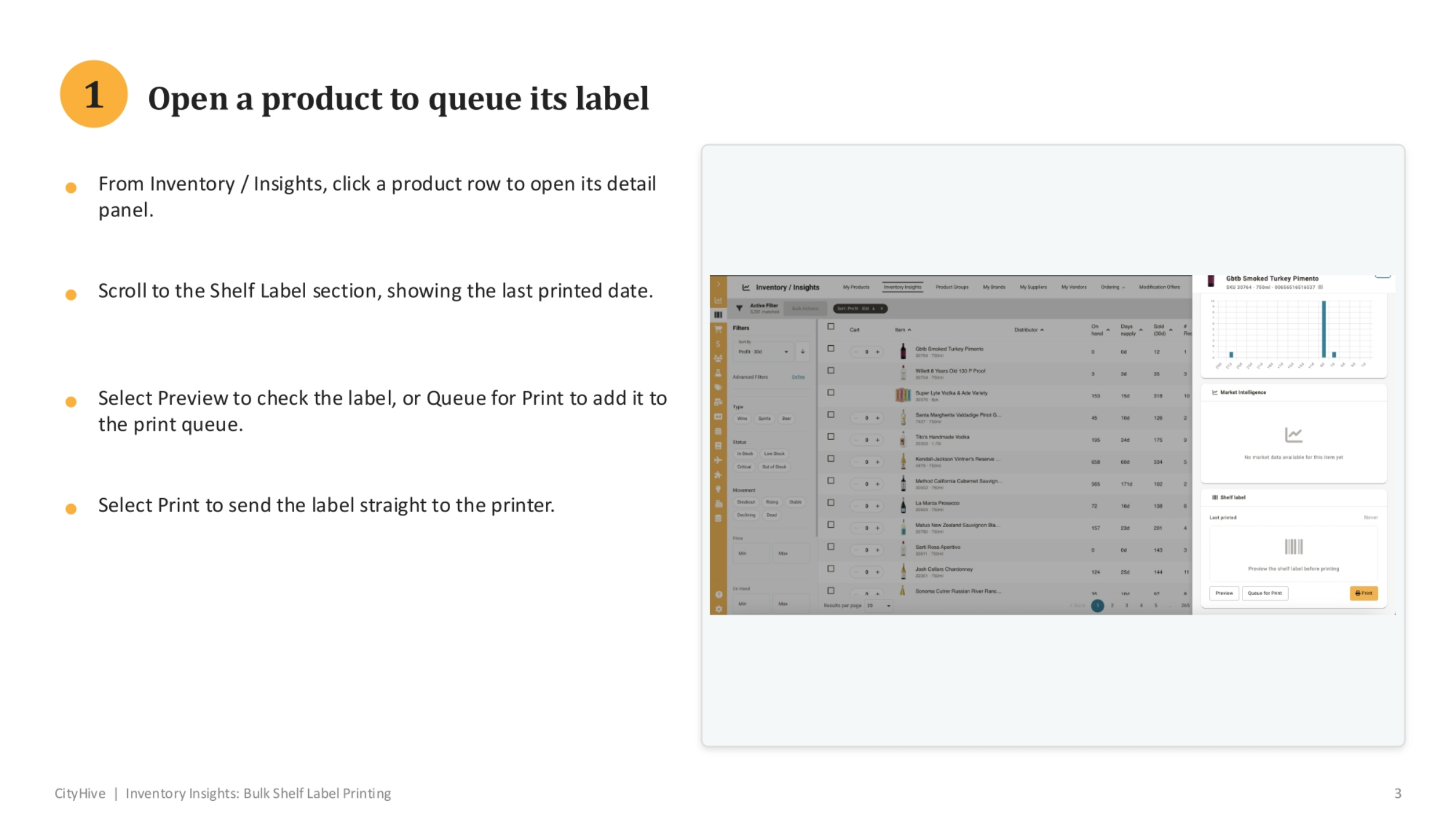
To queue a product's label, begin in Inventory or Insights and click a product row to open its detail panel. Scroll down to the Shelf Label section, which displays the last printed date. From there, you can select 'Preview' to check the label's appearance, or 'Queue for Print' to add it to the print queue. For immediate printing, choose 'Print' to send the label directly to the printer.
3. Confirming Label Queue Status
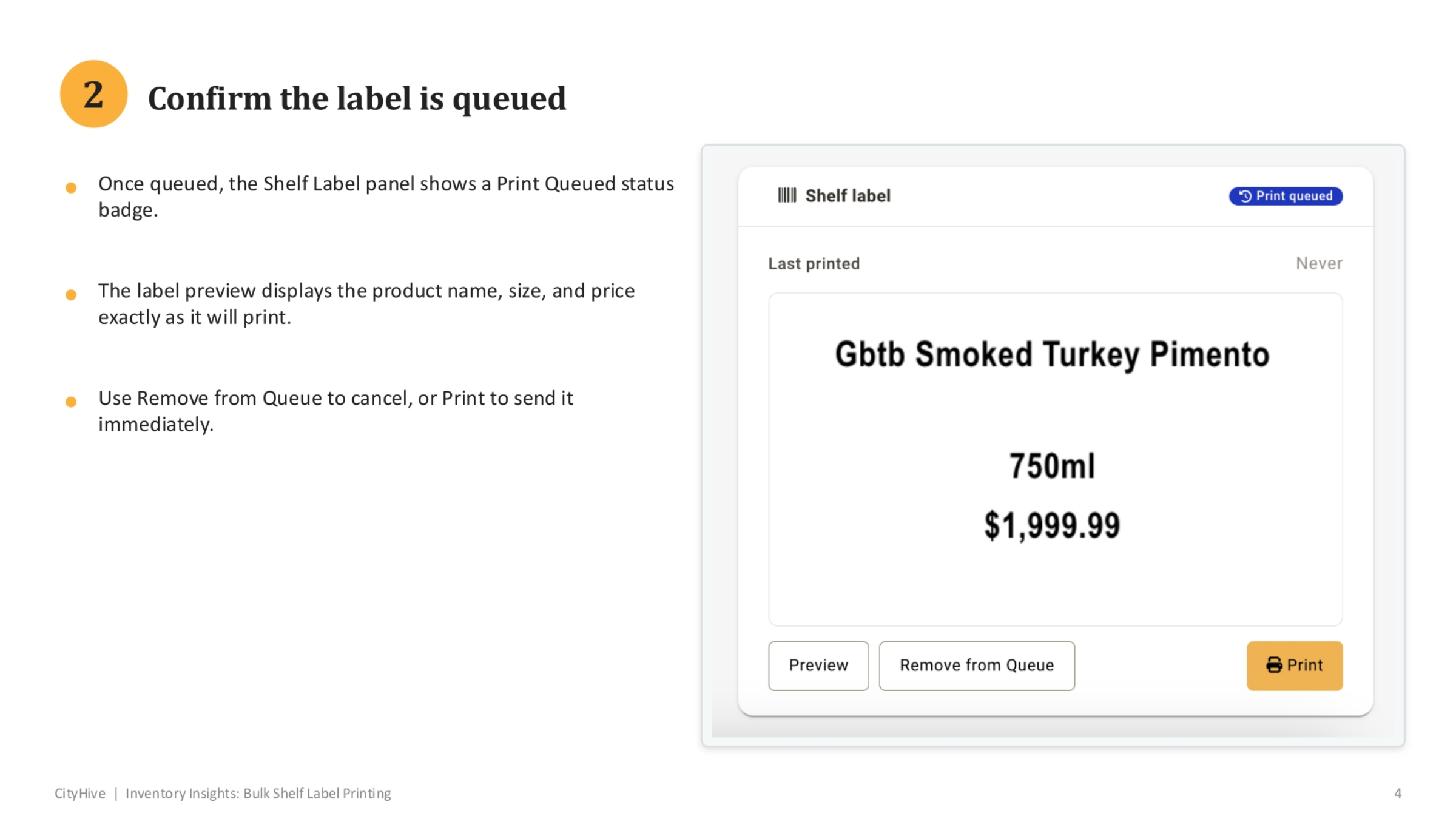
Once a label is queued, the Shelf Label panel will clearly show a 'Print Queued' status badge. The label preview accurately displays the product name, size, and price, ensuring it will print exactly as shown. If you need to make changes or cancel, use 'Remove from Queue'. Alternatively, if you're ready to print, select 'Print' to send it immediately.
4. Filtering by Shelf Label Status
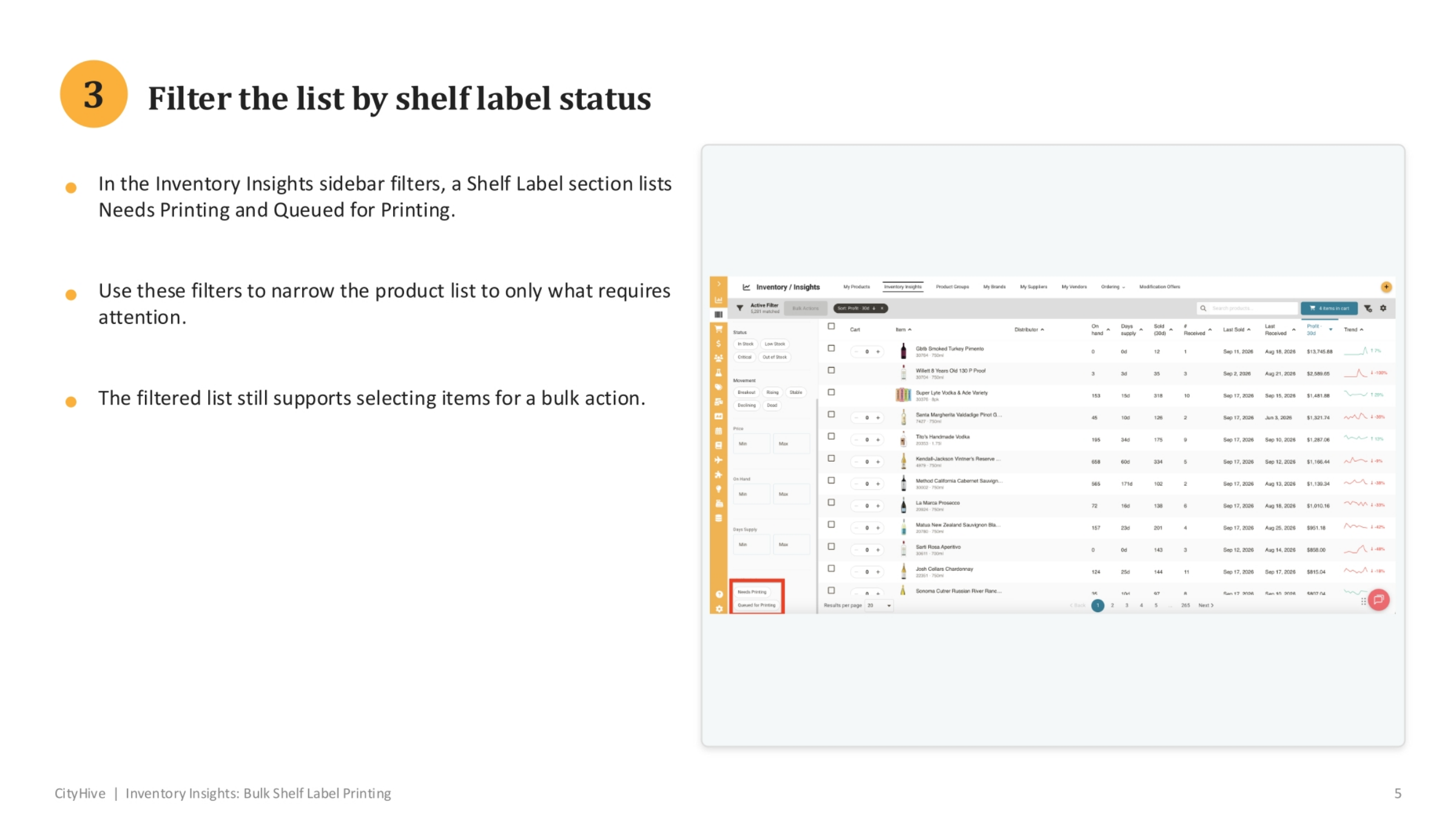
Within the Inventory Insights sidebar filters, a dedicated Shelf Label section allows you to view items that 'Need Printing' or are 'Queued for Printing'. These filters are invaluable for narrowing your product list, focusing only on items that require immediate attention for label management. The filtered list fully supports selecting multiple items for a bulk action, enhancing your workflow efficiency.
5. Executing Bulk Print Actions
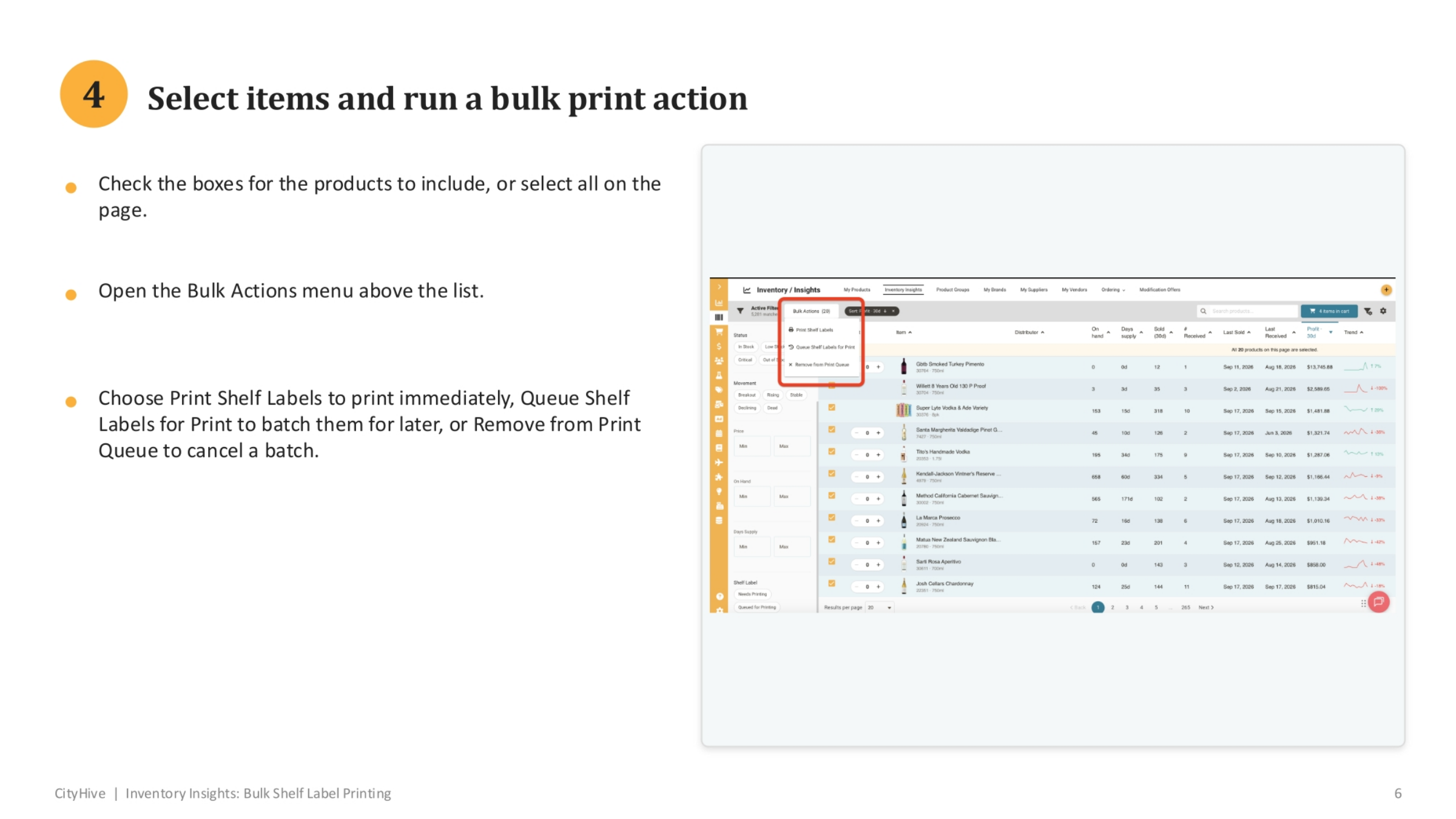
To perform a bulk print action, first check the boxes for the specific products you wish to include, or simply select all items on the current page. Then, open the 'Bulk Actions' menu located above the list. From this menu, you have three options: 'Print Shelf Labels' for immediate printing, 'Queue Shelf Labels for Print' to batch them for later, or 'Remove from Print Queue' to cancel a batch.
6. Tracking Price Change Queued Labels
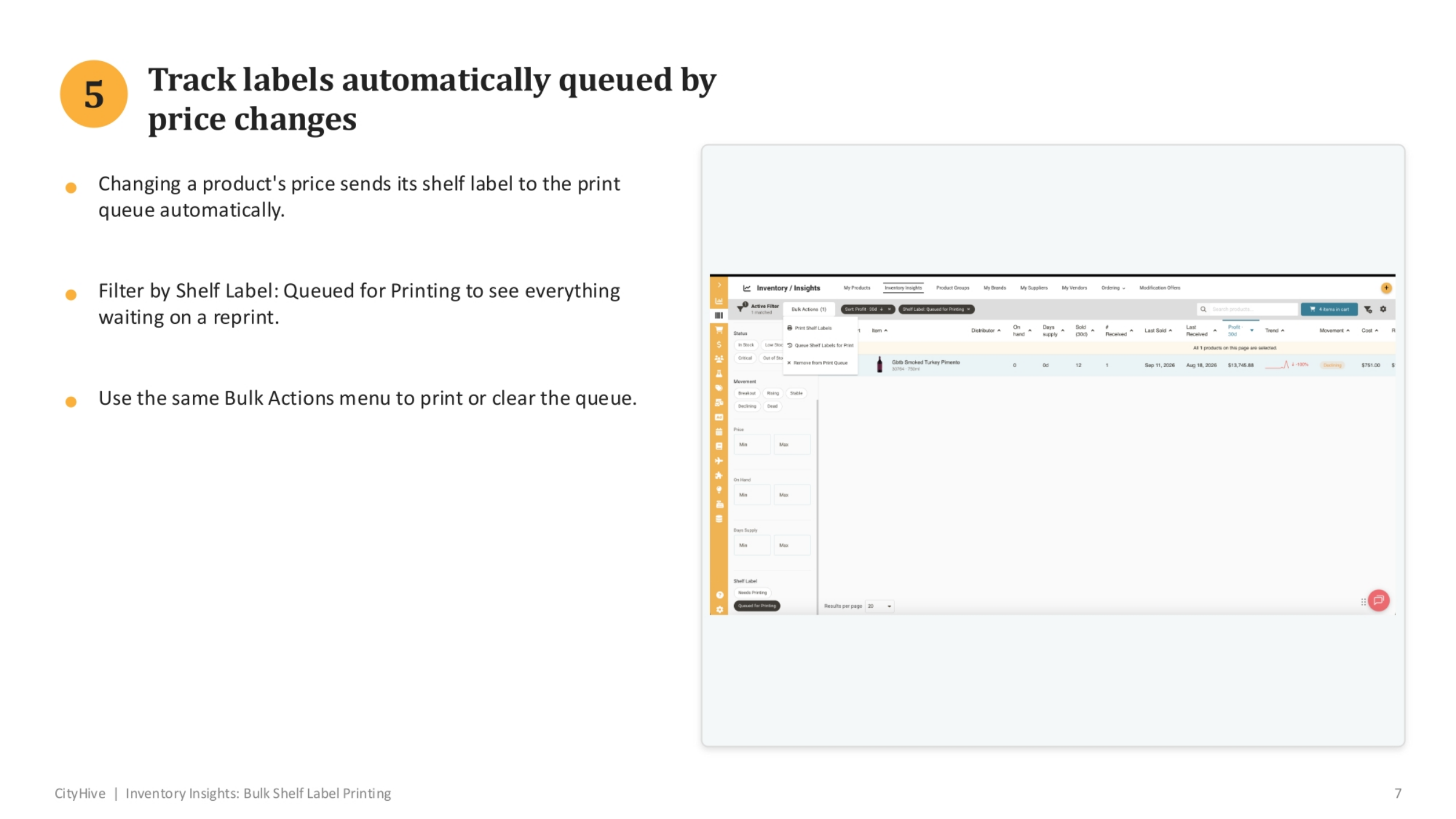
A significant feature is the automatic queuing of shelf labels when a product's price changes. This ensures your labels are always up-to-date. To track these automatically queued labels, simply filter by 'Shelf Label: Queued for Printing' to see all items awaiting a reprint. You can then use the same 'Bulk Actions' menu to either print these labels or clear the queue as needed.
7. Key Steps Recap
To recap, we covered opening a product to manage its label, confirming its queue status, filtering by label status, and using bulk actions for printing or queuing. We also discussed how price changes automatically queue labels for reprinting.