---
title: Manage Orders
description: The edit order page now includes a redesigned layout and added features! This guide explains how to use both the new edit page (recommended) and the old edit page.
---
[Skip to content](https://support.cityhive.net/portal/en/kb/articles/manage-orders#main-content)
[Contact Us](https://support.cityhive.net/kb-tickets/new?hsLang=en) [Customer portal](https://support.cityhive.net/tickets-view?hsLang=en)
![City Hive Logo-2.png\]](https://support.cityhive.net/hs-fs/hubfs/City%20Hive%20Logo-2.png?width=62&height=60&name=City%20Hive%20Logo-2.png)
Open main navigation
Close main navigation
- [Contact Us](https://support.cityhive.net/kb-tickets/new)
- [Customer portal](https://support.cityhive.net/tickets-view)
We're here to help!
- There are no suggestions because the search field is empty.
1. [City Hive Support](https://support.cityhive.net/?hsLang=en)
2. [Orders - Need Help?](https://support.cityhive.net/orders-need-help?hsLang=en)
# Manage Orders
## Learn how to manage orders directly within the City Hive dashboard — including locating orders, viewing and editing order details, and understanding order statuses to keep everything running smoothly.
#### [Manually Create an Order](https://support.cityhive.net/portal/en/kb/articles/manage-orders#create-an-order)
1. **[Begin on the Orders section](https://merchants.cityhive.net/#!/fffff/orders)** of your dashboard
2. **Click (+) at the top right** next to the search bar****
3. Select the first option to create a new order 
4. **Type the customer's name to search and select them**. If the customer has a phone number and payment method on file, these will auto-populate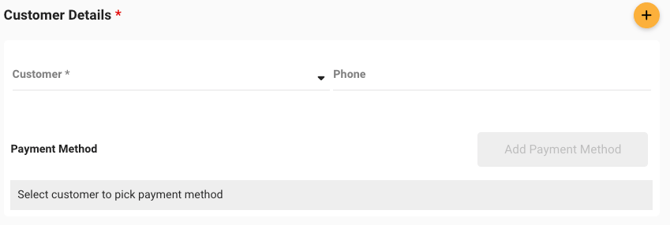**To add a new customer**, select  and manually enter their details
5. **Add and select the desired products**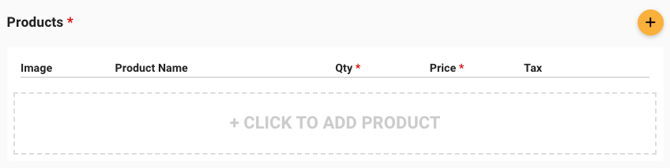
6. **Choose a fulfillment method**

7. Any notes you'd like the customer to see can be added to the order here**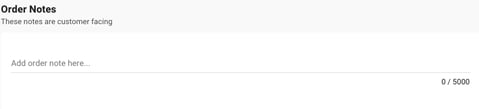**
8. For gift orders, select the gift option and fill in the recipient's information on the customer's behalf**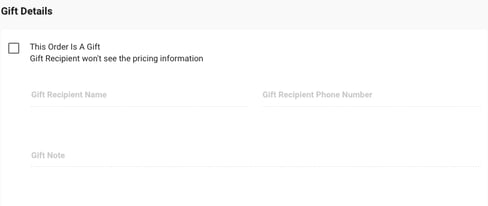**
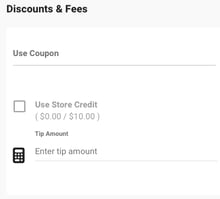
9. **Add any coupon codes, store credit, or tip amount** as needed
****
10. **Select Create to finalize and create the order **
---
#### [Edit an Order](https://support.cityhive.net/portal/en/kb/articles/manage-orders#edit-an-order)
Once you find the order, select **View/Edit** , then click **Edit at the top right** to view the full order page.
**Add and Remove products**
- Click on (+) then search for the desired product to add in a new item 
- To remove a product, hover over the item and click on the trash bin next to the product you would like to remove 
**Adding a Coupon -** Under Discounts & Fees, click Use Coupon to manually enter a code 
**Add/Change Tip -** Set the tip to the preferred amount by clicking on 
**Add/Change Manual Discount -** Simply enter the desired amount 
**Add/Change Delivery Fee** - Set the amount to your preference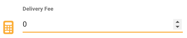
**Update Method -** Switch the order method by choosing another option 
**Save the Order** - Once you've completed all the edits to your order, click Update at the top right ****
**Review the changes, then select Approve** to save all updates
---
#### [Fulfill an Order](https://support.cityhive.net/portal/en/kb/articles/manage-orders#fulfill-an-order)
1. **Review the order** to protect against fraud – Suspicious orders are flagged with a red shield next to the order status. To review the suspicious activity, **click on the order and select the dropdown next to the yellow triangle**. This will help you make an informed decision on whether to proceed with order fulfillment or decline the transaction due to fraud.
**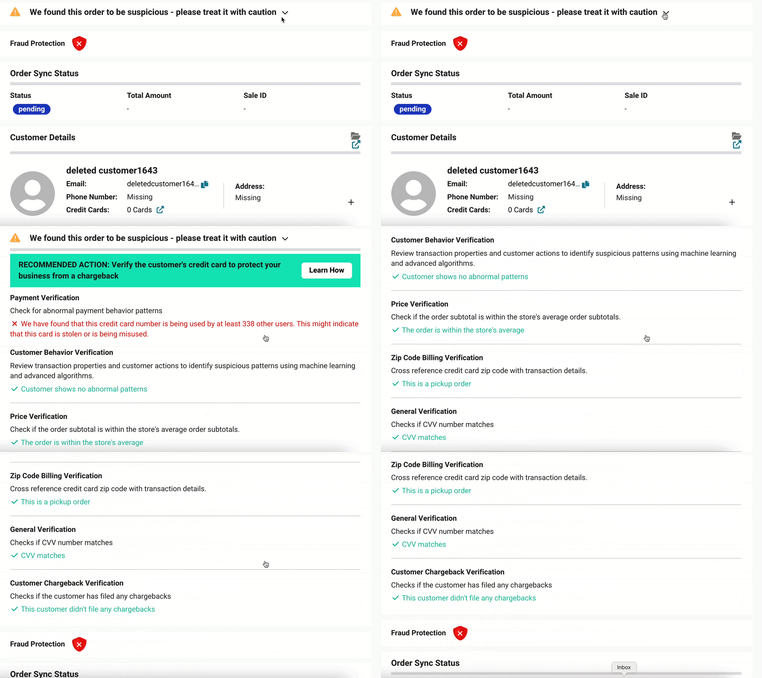**
2. **Most suspicious reasons for fraud include:**
1. Mismatch of account and credit card names
2. Inconsistent email address (Ex: Customer Name is John Doe and their email is Kevin1234@anemailaddress.com)
3. Different states for delivery and billing zip codes
4. Items with resale value (Moet Chandon, Don Julio, Hennessey, etc)
**If you're not sure,** **check that the last four digits on the credit card used matches the name on the purchaser's drivers license when you deliver the order or the order is picked up. If you believe the order is fraudulent, decline the order in your merchant dashboard and require the customer come in store to process as a card present transaction**
3. **Ensure products are in stock**- Before approving the order, pull the products from the floor to ensure you have everything in stock. It is important to do this before accepting the order because when you do so, the payment starts transferring from the customers bank to yours. If you do not have all products in stock, you can edit the order. Refer to our article here for assistance on how to **[edit an order.](https://support.cityhive.net/portal/en/kb/articles/editing-an-order?hsLang=en)**
4. **Product Picker**- This option allows you to scan the QR code on the order page directly from your smartphone to show you exactly which items belong to this order whether it's for curbside pickup, delivery, or shipping. From there, select and pack them without mistakes each time.
5. **Accept the Order** - Once clicked, your customer is notified via SMS that their order is ready for pickup or will arrive via delivery within the time frame setup for their zone. You can customize the text message your customer receives [**here. 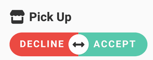**](https://merchants.cityhive.net/#!/ffffff/?/notification_center//order_notification_center/orders.confirmed)
6. **Process in your POS** - In order to deplete the inventory and account for your sales in your POS, process the order in your POS system as if the customer was in the store. To do this you'll need to create an additional tender option so that when you finalize the transaction you can account it towards either "City Hive" or "Online Order".
7. **Fulfill the Order** - When the delivery driver has left with the order or the customer has picked up their products, click fill to move the order out of it's pending state. 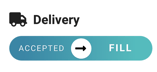
---
#### [Refund an Order](https://support.cityhive.net/portal/en/kb/articles/manage-orders#refund-an-order)
1. Begin on the order you are looking to refund
2. **Click the Refund button** on the right side of the order page to **issue a Full Refund** 
**If the order has not been approved you can decline the order so the customer will not be charged.**
**Voided Transactions**
While a refund is being issued, it can appear as a full refund or as a voided transaction. If the refund takes place within the hour the order was submitted it may appear as a void. If that happens, the system stops the funds from transferring and the transaction will not appear on the customers account. In addition voided transactions will not be subject to any transactional fees.
**Partial Refunds**
1. Begin by **clicking on the Edit button** on the right side of the order page 
2. Delete the product by **clicking on the trash bin**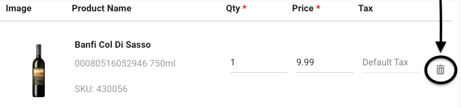
3. If there is more than one of the products that you would like to refund, simply **update the quantity of the product** to the correct amount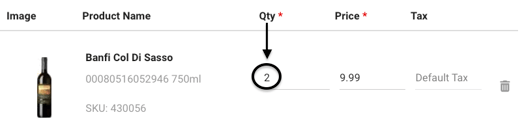
4. After making the desired adjustments for the order, **click **
**If the order has been accepted or fulfilled you may still proceed with a partial refund!**
---
#### [Things to know](https://support.cityhive.net/portal/en/kb/articles/manage-orders#things-to-know)
- When an order is edited, an email notification is sent to the customer. To avoid a failed order, it's best to limit the number of edits made at once.
- **Transaction fees are calculated based on the original order amount and cannot be adjusted**
- Editing an order after it has been accepted may involve additional cost as well as fees. If you need to refund a specific item here is a link to help guide you in issuing a [partial refund](https://support.cityhive.net/refunds?hsLang=en#partialrefund) or if the item would like to be swapped out you can simply add a product and delete the one that is unwanted.
- Since we are integrated into your POS in real time, you might come across an error when editing products that says "*Item not in stock*" **or** "*Please make sure product is in stock*", please ensure which item is causing the error. If this error persists, try resolving it by recreating the order, re-adding the products again and save.
**For any further assistance on making edits to an order, please contact [support@cityhive.net](mailto:support@cityhive.net)**
- [Get Set Up](https://support.cityhive.net/get-set-up?hsLang=en#main-content)
- [Create Your Merchant Account](https://support.cityhive.net/get-set-up?hsLang=en#create-your-merchant-account)
- [Configure Your Settings](https://support.cityhive.net/get-set-up?hsLang=en#configure-your-settings)
- [Launch Your Website and App](https://support.cityhive.net/get-set-up?hsLang=en#launch-your-website-and-app)
- [Marketplace Integrations](https://support.cityhive.net/get-set-up?hsLang=en#marketplace-integrations)
- [Orders - Need Help?](https://support.cityhive.net/orders-need-help?hsLang=en#main-content)
- [Shipping](https://support.cityhive.net/orders-need-help?hsLang=en#shipping)
- [Delivery Optimization](https://support.cityhive.net/orders-need-help?hsLang=en#delivery-optimization)
- [Digital Gift Cards](https://support.cityhive.net/orders-need-help?hsLang=en#digital-gift-cards)
- [Inventory Management](https://support.cityhive.net/inventory-management?hsLang=en#main-content)
- [City Hive POS](https://support.cityhive.net/inventory-management?hsLang=en#city-hive-pos)
- [Set Up and Sync](https://support.cityhive.net/inventory-management?hsLang=en#set-up-and-sync)
- [Update Product Information](https://support.cityhive.net/inventory-management?hsLang=en#update-product-information)
- [Standard Inventory Management](https://support.cityhive.net/inventory-management?hsLang=en#standard-inventory-management)
- [Customize Your Website & App](https://support.cityhive.net/customize-your-website-app?hsLang=en#main-content)
- [Creating and Editing Pages](https://support.cityhive.net/customize-your-website-app?hsLang=en#creating-and-editing-pages)
- [Graphics & Design](https://support.cityhive.net/customize-your-website-app?hsLang=en#graphics-design)
- [Content Organization](https://support.cityhive.net/customize-your-website-app?hsLang=en#content-organization)
- [Promotions](https://support.cityhive.net/promotions?hsLang=en#main-content)
- [Promotions](https://support.cityhive.net/promotions?hsLang=en#promotions)
- [Wine Clubs](https://support.cityhive.net/wine-clubs?hsLang=en#main-content)
- [Wine Club](https://support.cityhive.net/wine-clubs?hsLang=en#wine-club)
- [Marketing & Customer Engagement](https://support.cityhive.net/marketing-customer-engagement?hsLang=en#main-content)
- [Email, Push & SMS Marketing](https://support.cityhive.net/marketing-customer-engagement?hsLang=en#email-push-sms-marketing)
- [Customer Acquisition & Management](https://support.cityhive.net/marketing-customer-engagement?hsLang=en#customer-acquisition-management)
- [Autopilot](https://support.cityhive.net/autopilot?hsLang=en)
- [Events](https://support.cityhive.net/events?hsLang=en)
- [Overview & Reports](https://support.cityhive.net/overview-reports?hsLang=en)
- [Payments & Billing](https://support.cityhive.net/payments-billing?hsLang=en#main-content)
- [Transactions](https://support.cityhive.net/payments-billing?hsLang=en#transactions)
- [Payments](https://support.cityhive.net/payments-billing?hsLang=en#payments)
- [Disbursements](https://support.cityhive.net/payments-billing?hsLang=en#disbursements)
- [Chargebacks](https://support.cityhive.net/payments-billing?hsLang=en#chargebacks)
- [Ads & Analytics](https://support.cityhive.net/ads-analytics?hsLang=en#main-content)
- [Analytics](https://support.cityhive.net/ads-analytics?hsLang=en#analytics)
- [Ads](https://support.cityhive.net/ads-analytics?hsLang=en#ads)
- [FAQs](https://support.cityhive.net/faqs?hsLang=en)
[](http://cityhive.net)
City Hive Help Center
Copyright © 2026, City Hive, Inc.